


Smart Captions is Picfair's powerful new tool that instantly generates titles, captions, and tags for your images, and it could make a real difference to your Picfair Store. Here's the full guide


What Is Picfair’s Smart Captions Tool?
Smart Captions is a brand-new tool for photographers with Picfair Stores, using sophisticated image analysis and generative AI to quickly generate titles, captions, and descriptive tags for your images.
The impact on your Picfair Store can be significant - images with detailed textual metadata are far more likely to show up in external search results and AI searches. That means more visibility, more potential buyers finding your work, and ultimately more opportunities to sell.
The Key Benefits Of Using Smart Captions
There are real benefits to using Smart Captions for your images, and we think they're worth spelling out.
It creates a great first impression. Images accompanied by rich, descriptive titles and captions make a much better impression on buyers and visitors than images with no information at all. Having no title or description, a messy filename, or just "untitled" as your image title doesn't reflect well on you or your work. It can make you look disengaged, and if you seem uninterested in your own images, your store visitors will feel the same way.
It helps tell the story behind your work. Buyers want to know more about the images they're looking at. Your captions are where that happens. Good descriptive text lets you convey the context, location, moment, and meaning behind an image. It's an essential part of how a photographer communicates with their audience.
It significantly improves your visibility in search. This is perhaps the biggest commercial benefit. The titles, captions, and tags that Smart Captions generates are all visible and discoverable to search engines and AI searches. That means your images have a much greater chance of being found by potential buyers who are searching for exactly what you've photographed.
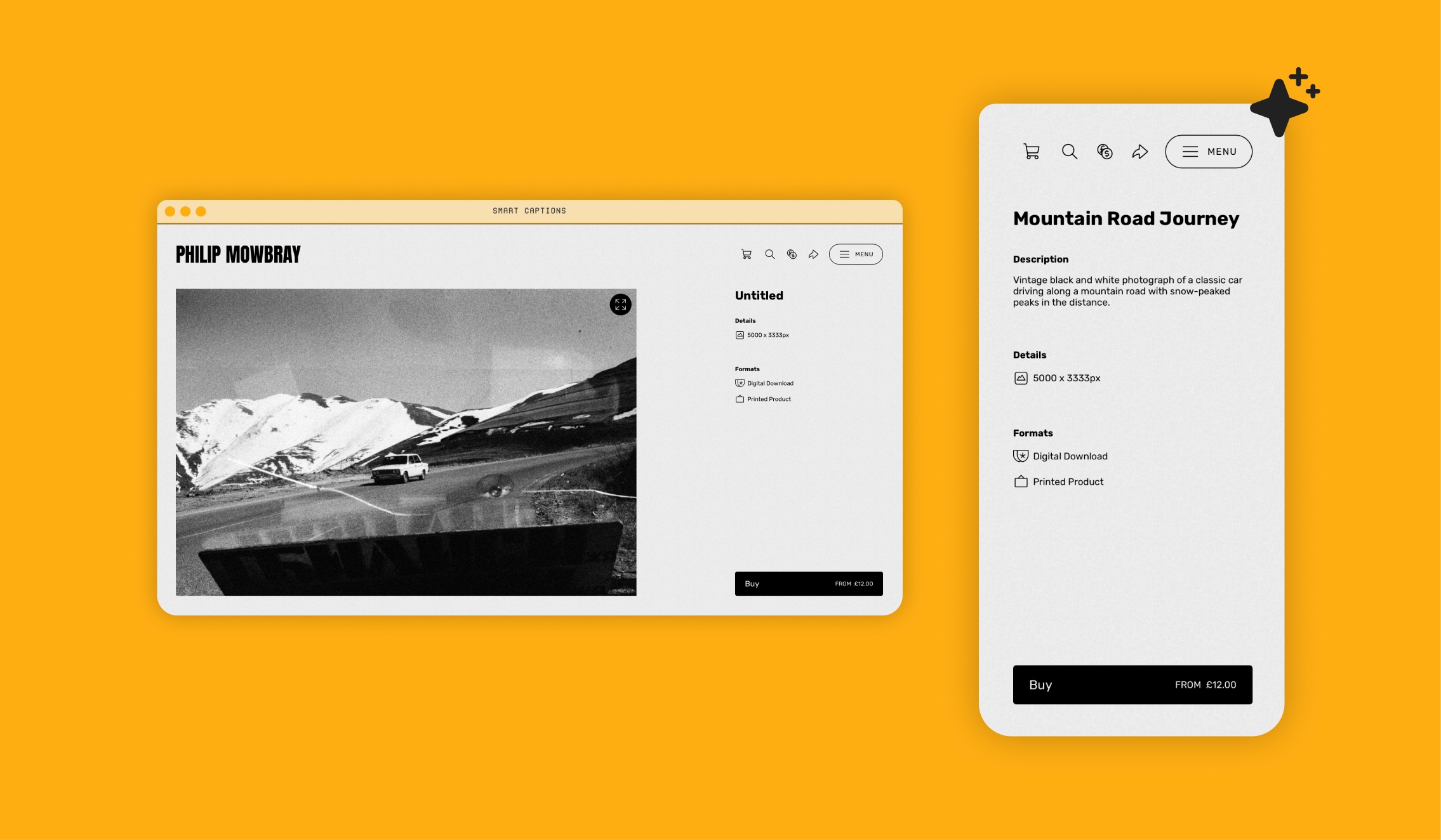
How Does Smart Captions Work?
When you send your images to the Smart Captions, Picfair sends a small 512px thumbnail of each selected image to our AI partners (currently Anthropic or Gemini), which use their models to analyse each image's visual content.
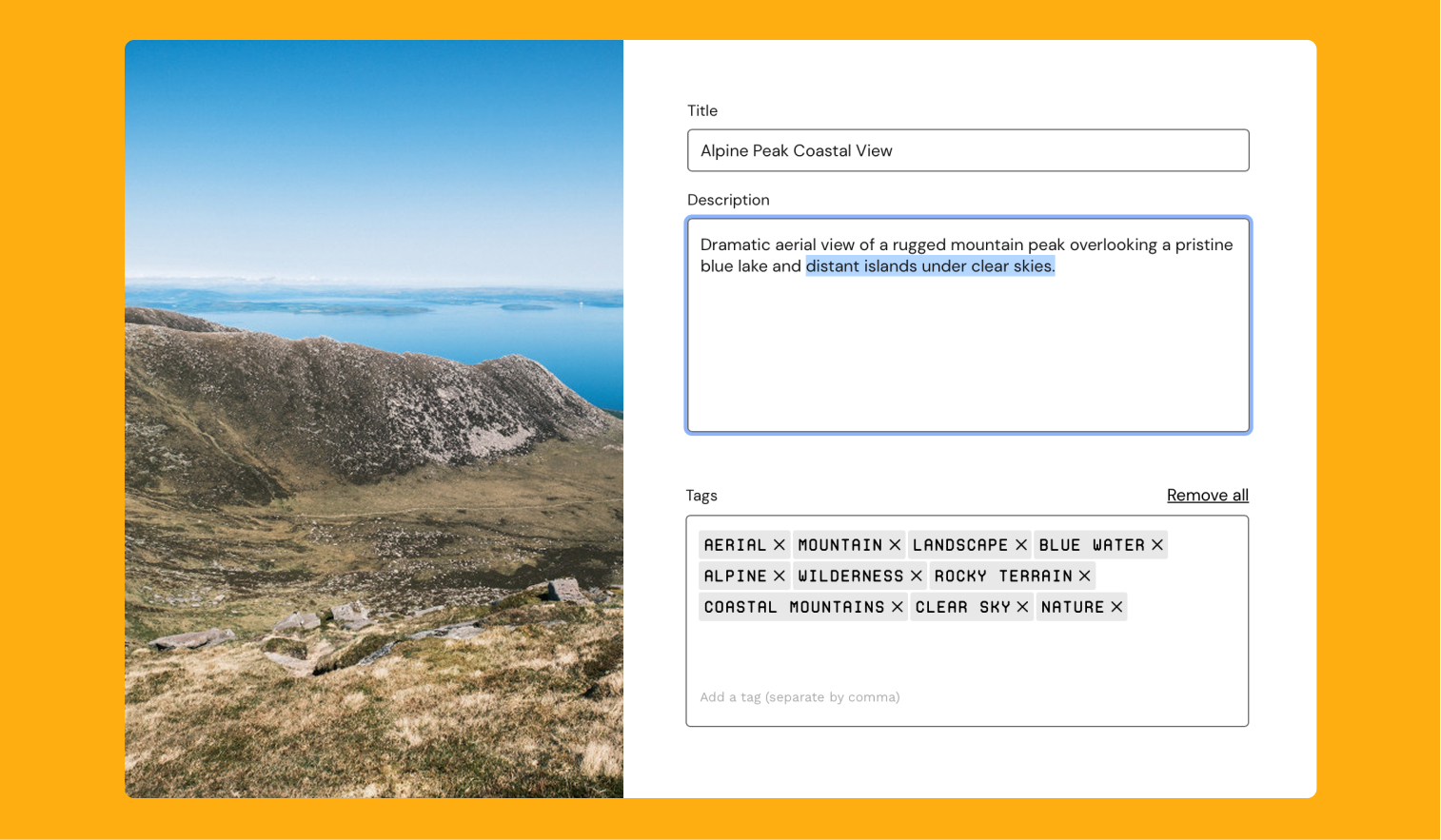
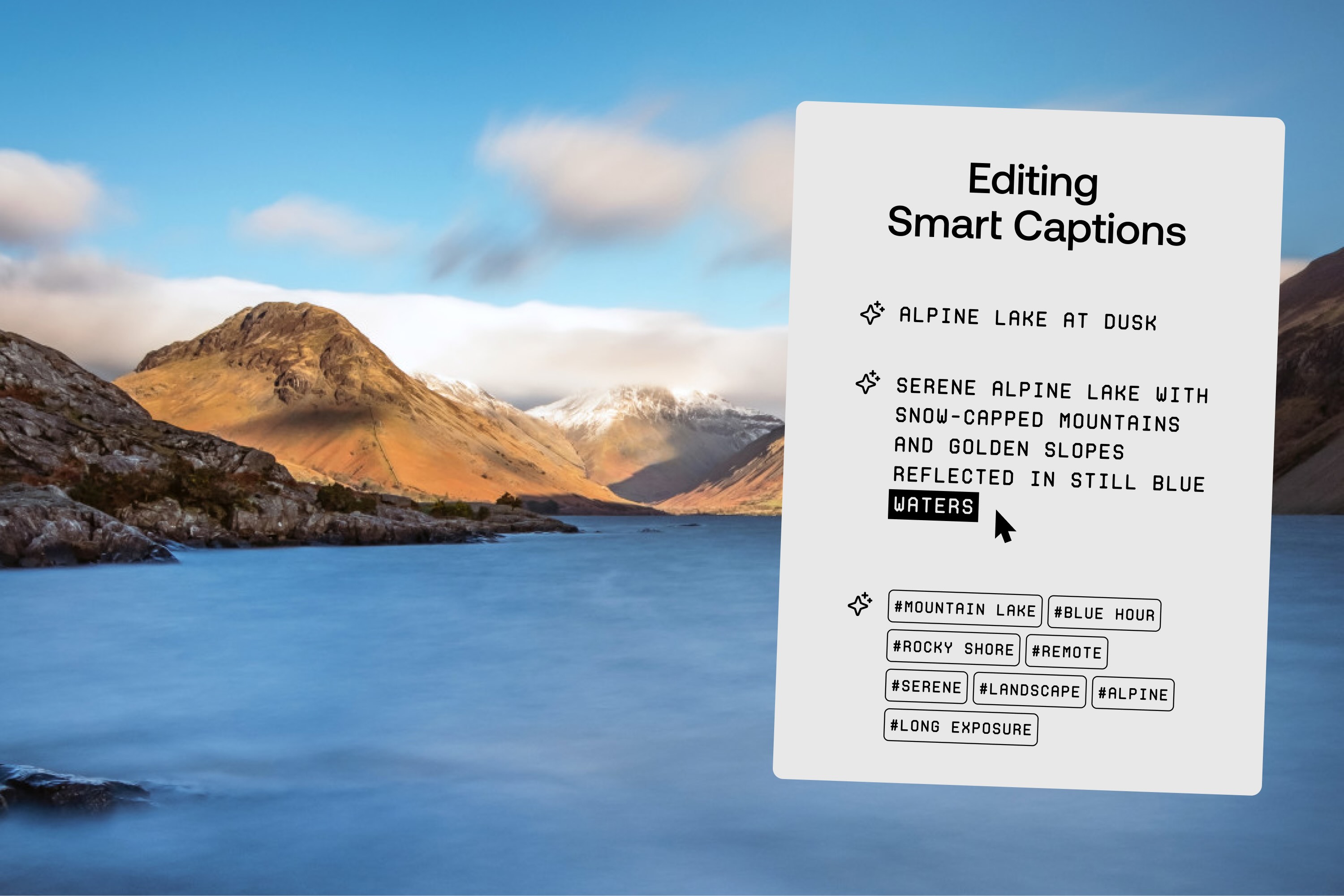
From there, Smart Captions generates a creative, concise title, a one- to two-sentence descriptive caption, and up to 20 single- or two-word descriptive tags for each image. You're then free to save them as they are, or edit and personalise them before saving.
One important thing to know: your images are not stored or used in any other processes by our AI partners. We know AI is a sensitive subject for photographers right now, and we want to be as clear as possible about how we're using it. Smart Captions has been built for photographers because we believe AI, when used thoughtfully, can genuinely support your work.
How To Use Smart Captions
Here's a step-by-step guide to getting started:
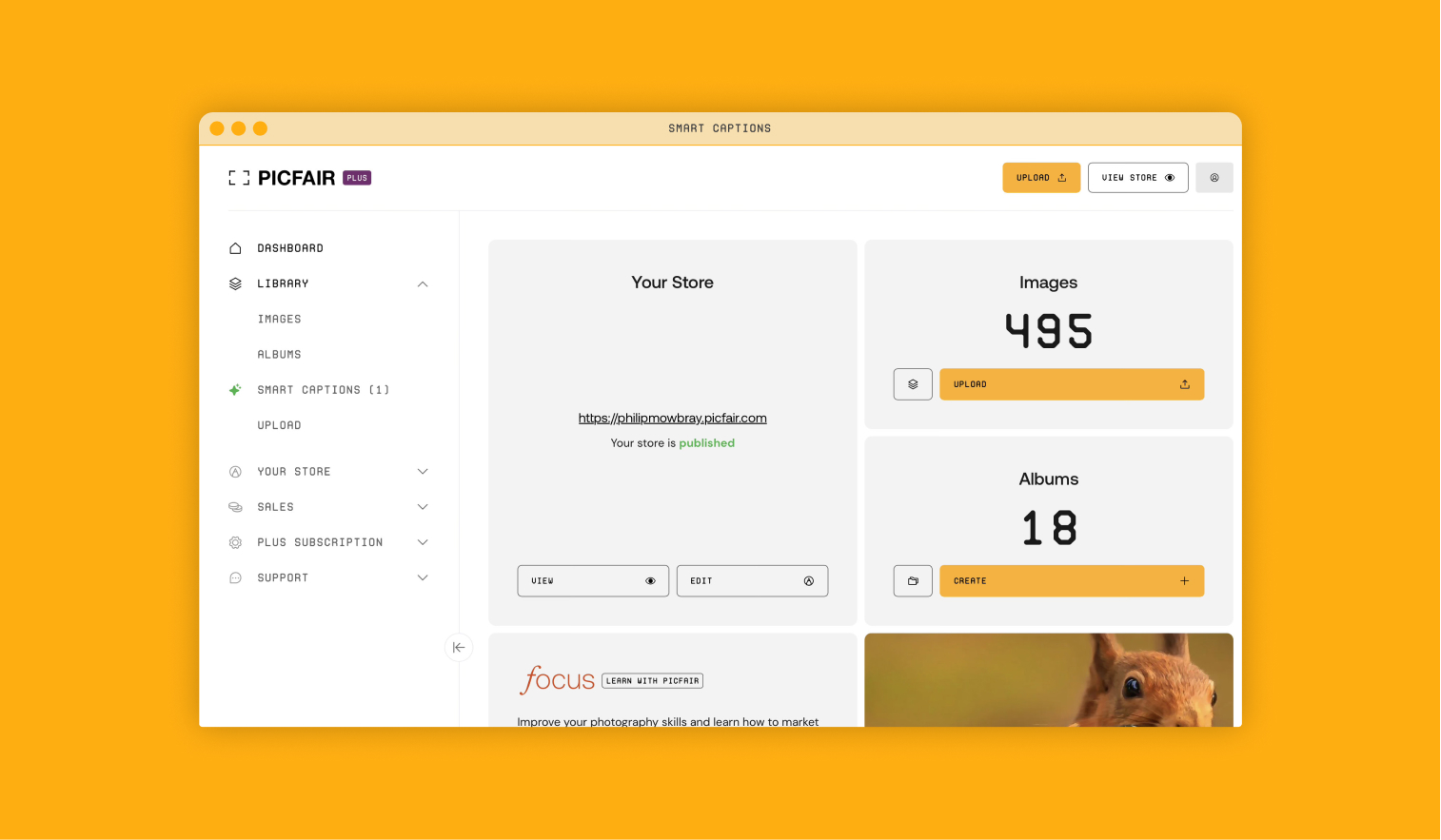
1 Access Smart Captions from your Dashboard
From your Images or Albums interfaces, you'll find Smart Captions listed under Tools in the bottom left of the left-hand menu. You can also access it directly from the Library section of your main Dashboard, where Smart Captions appears in the left-hand menu. Either way, clicking it will take you straight to the Smart Captions interface.
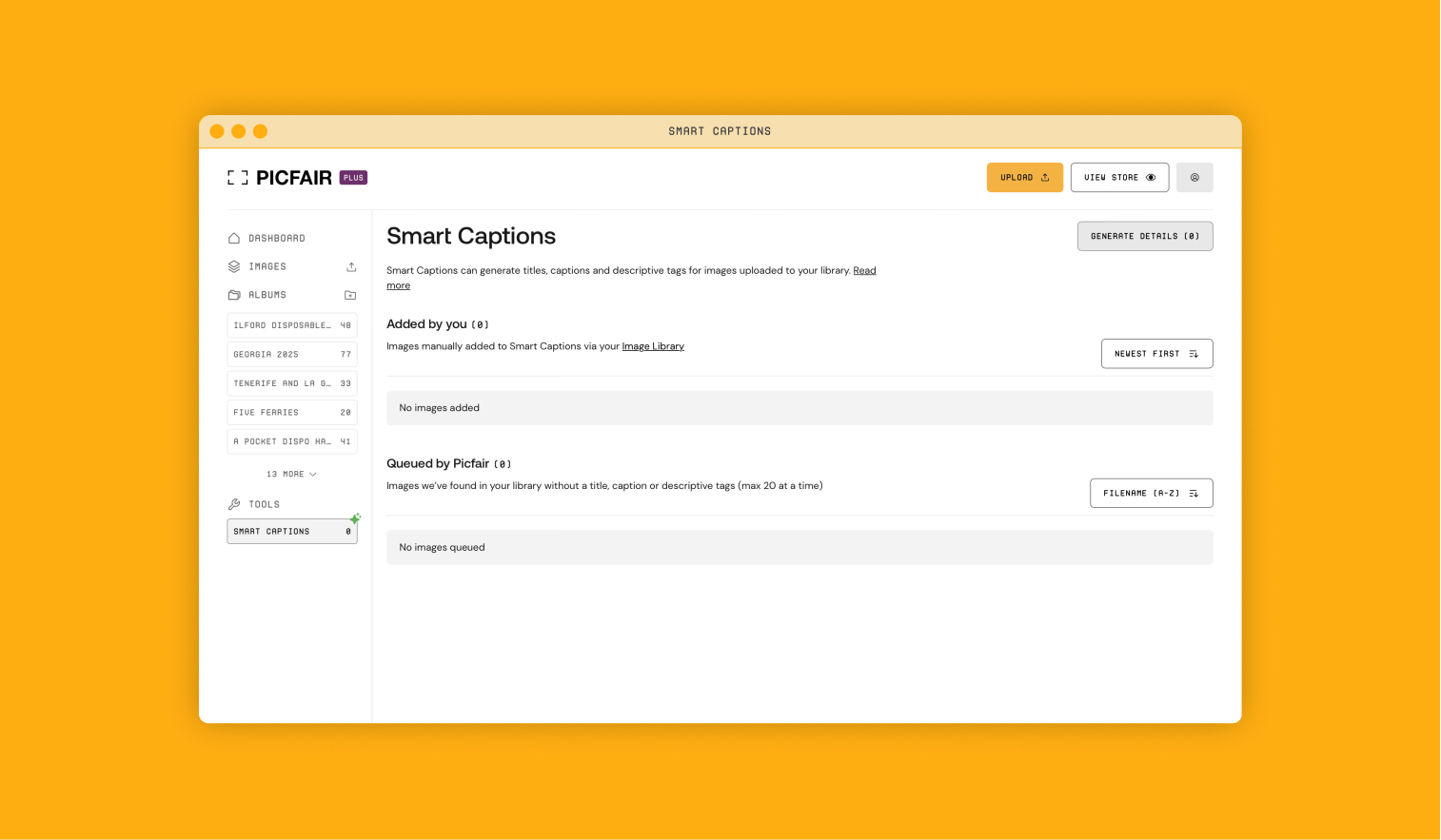
2 Understand the two image queues
Once you're in the Smart Captions interface, you'll see two sections. Added by you shows any images you've manually sent to Smart Captions and Queued by Picfair shows any images in your Image Library that don't yet have a title, caption, or tags, with up to 20 displayed at a time.
Within Queued by Picfair, please note that for images that don’t have either a title, caption, or tags (or a combination of any of those), any previously-entered text content will be overwritten when sent to Smart Captions and saved with new information.
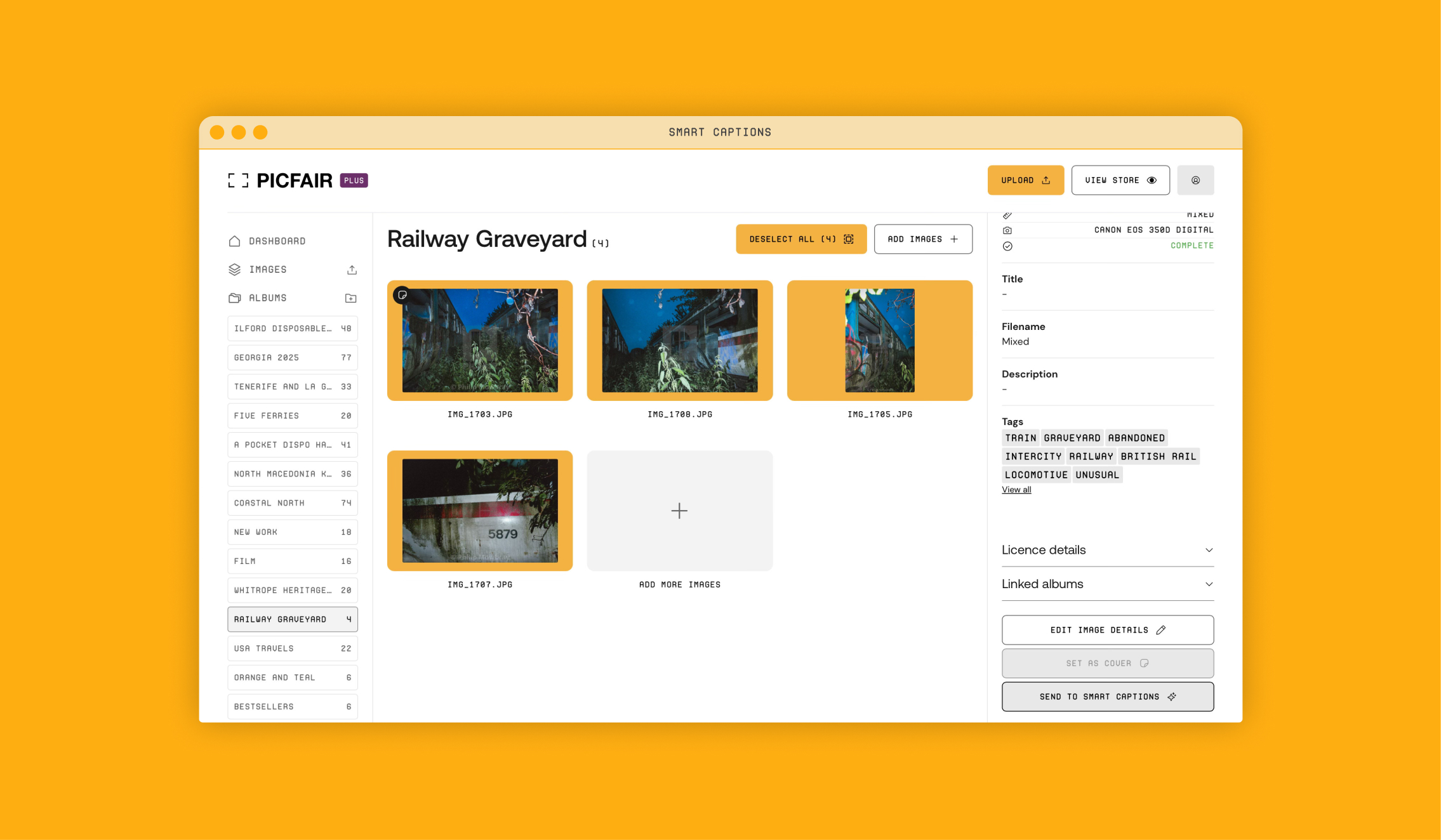
3 Send images to Smart Captions from your Image Library or Albums
You can also send images directly to Smart Captions from your Images or Albums interfaces. Select the images you want to caption, then click Send to Smart Captions in the right-hand panel. Those images will then appear within Added by you in the Smart Captions interface.
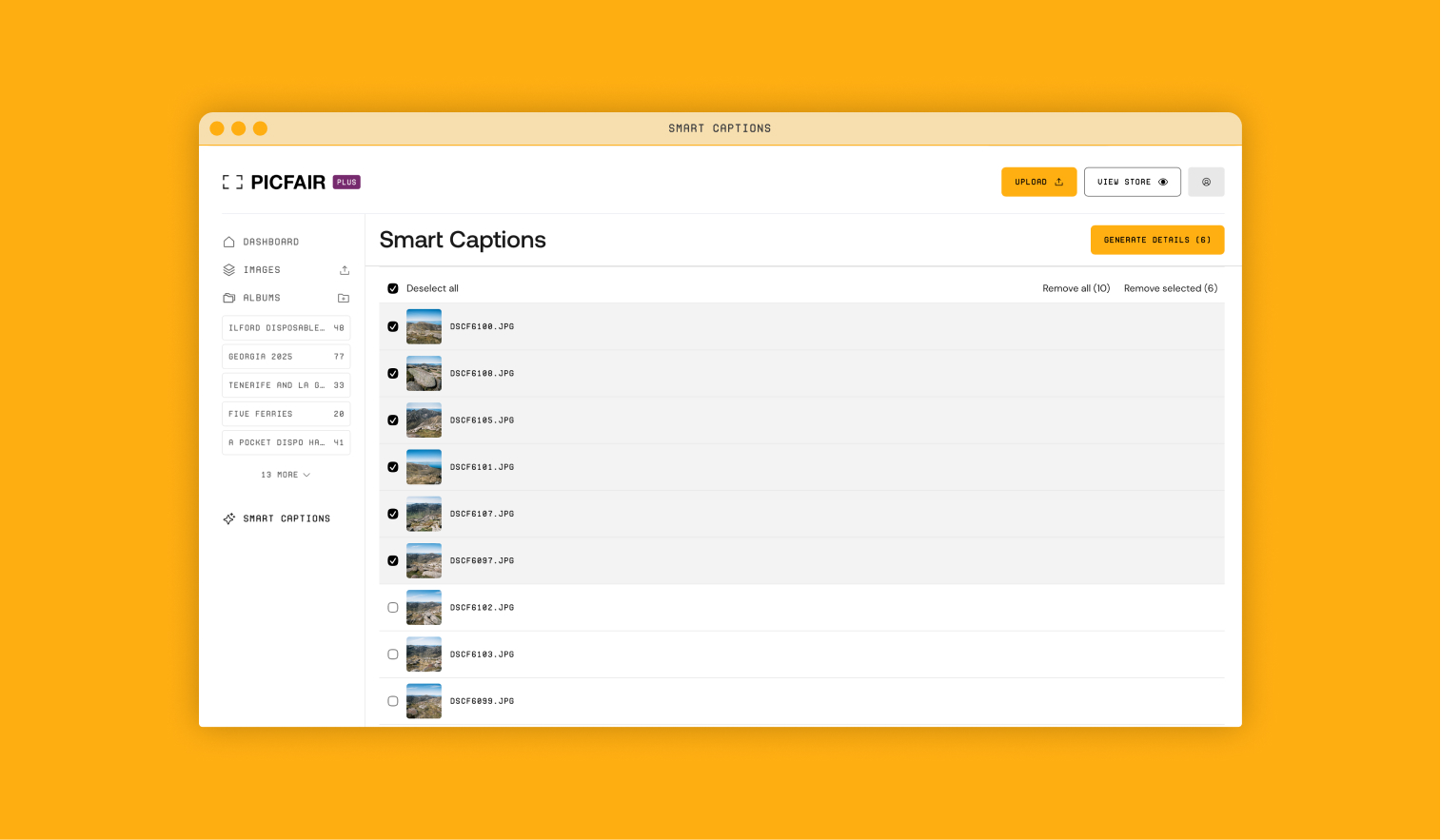
4 Select the images you want to process
Once you're in thYou can also send images directly to Smart Captions from your Images or Albums interfacese Smart Captions interface, select the images you want to generate details for. You can choose from your manually added images, any images queued by Picfair, or a combination of both.
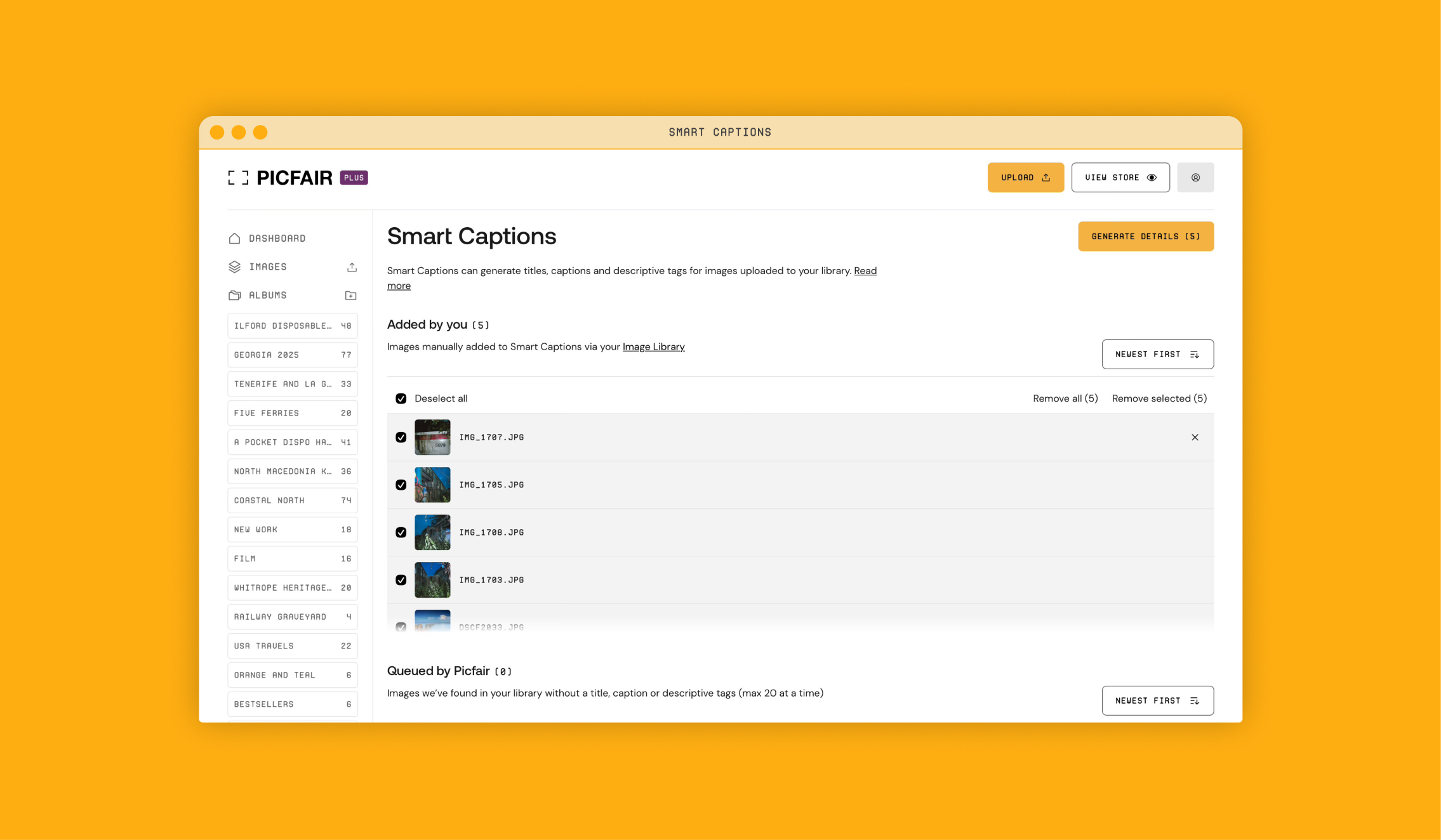
5 Click Generate Details
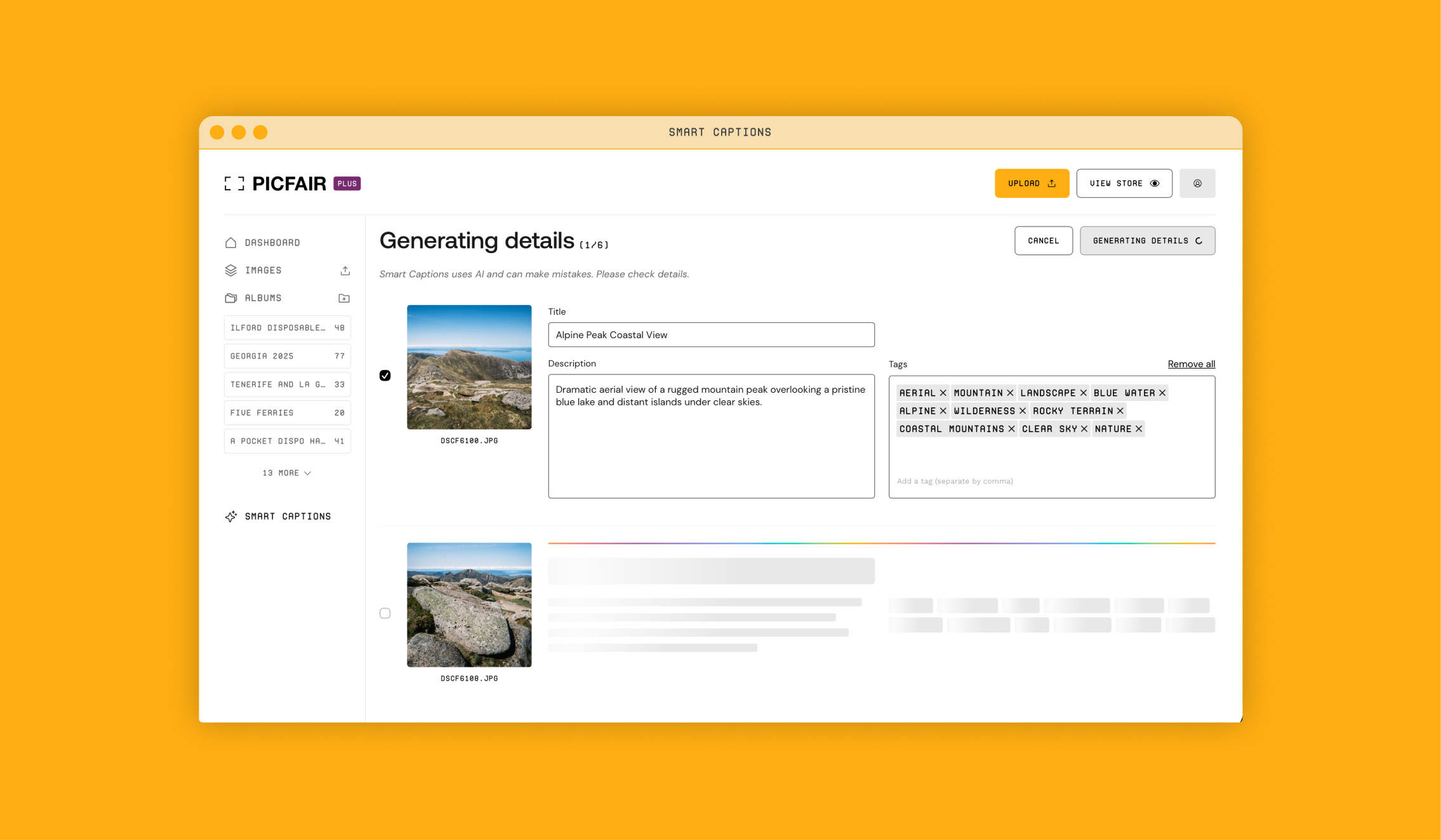
Once you're happy with your selection, click Generate Details. Give it a few seconds to work its magic, and the page will refresh with generated titles, captions, and tags for each of your images.
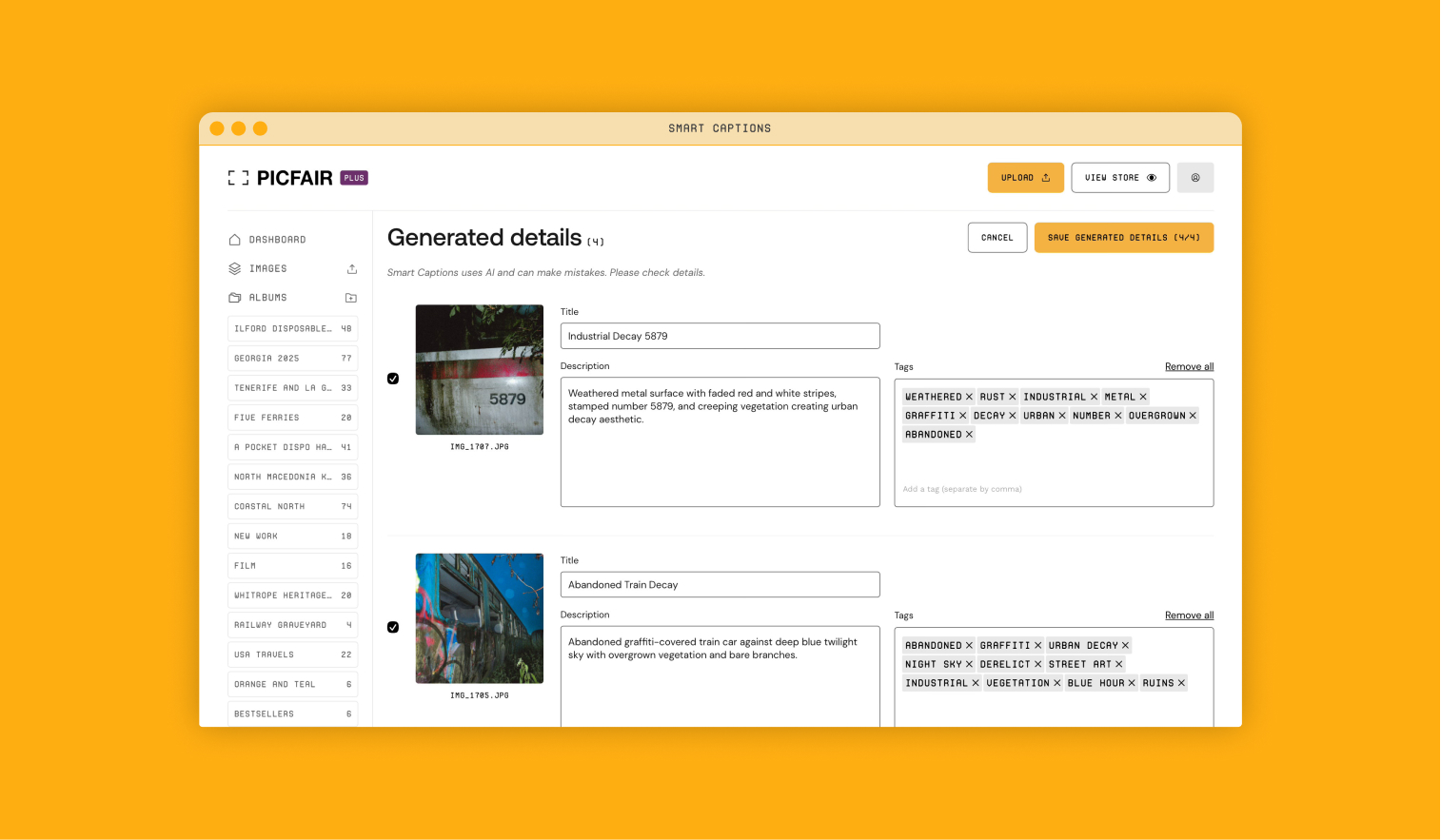
6 Review and edit the generated content
This is where it's worth taking a moment. Read through the titles, captions, and tags for each image, and make any edits you want before saving. Add specific location names, landmark details, or your own tone of voice where needed. We always recommend checking everything before you save.
7 Save your generated details
Once you're happy, click Save Generated Details.
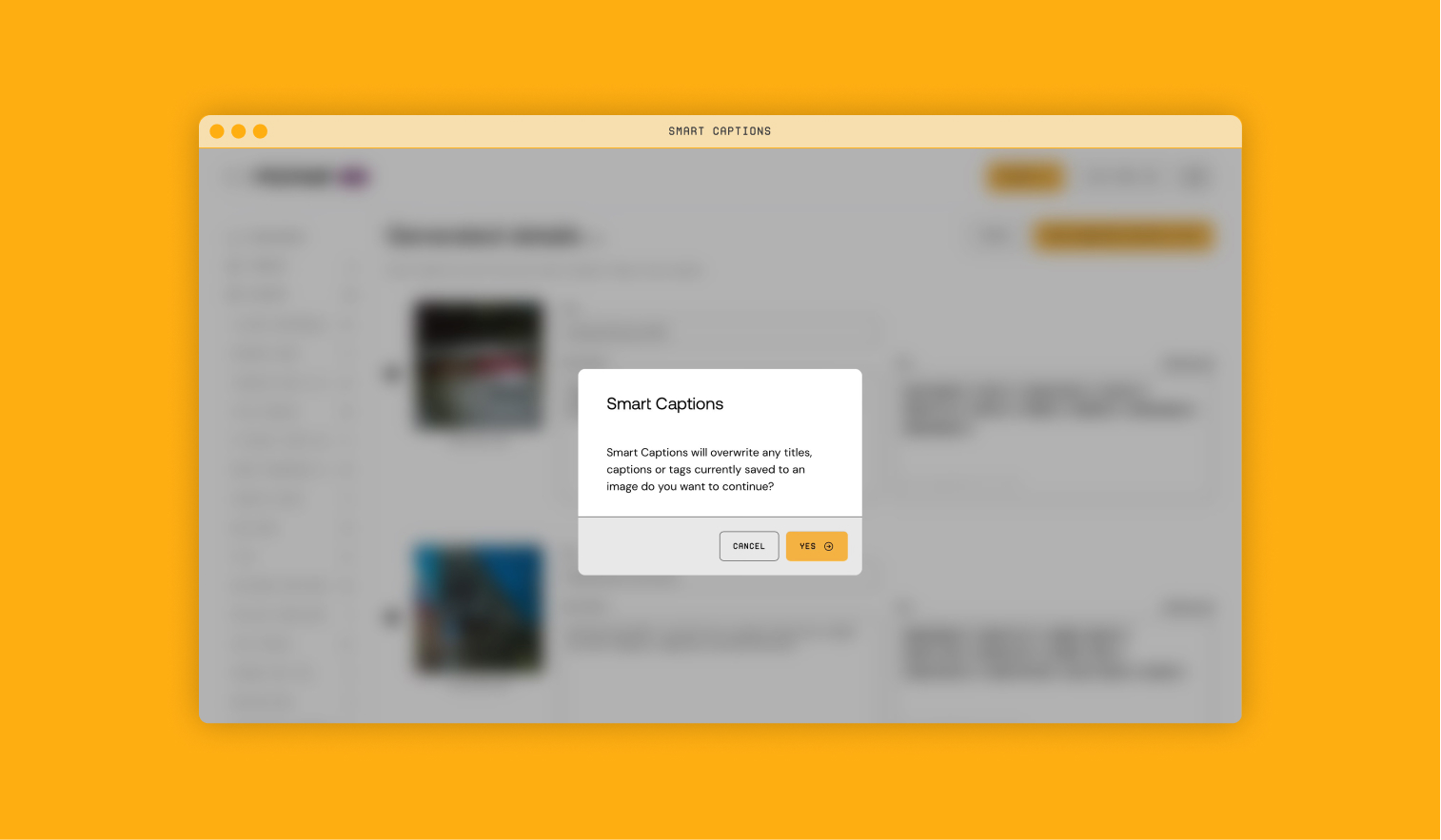
Important note: if any of the images you've sent to Smart Captions already have titles, captions, or tags saved to them, a prompt will appear asking if you want to continue, as the newly generated content will overwrite the existing information. Click Yes to proceed.
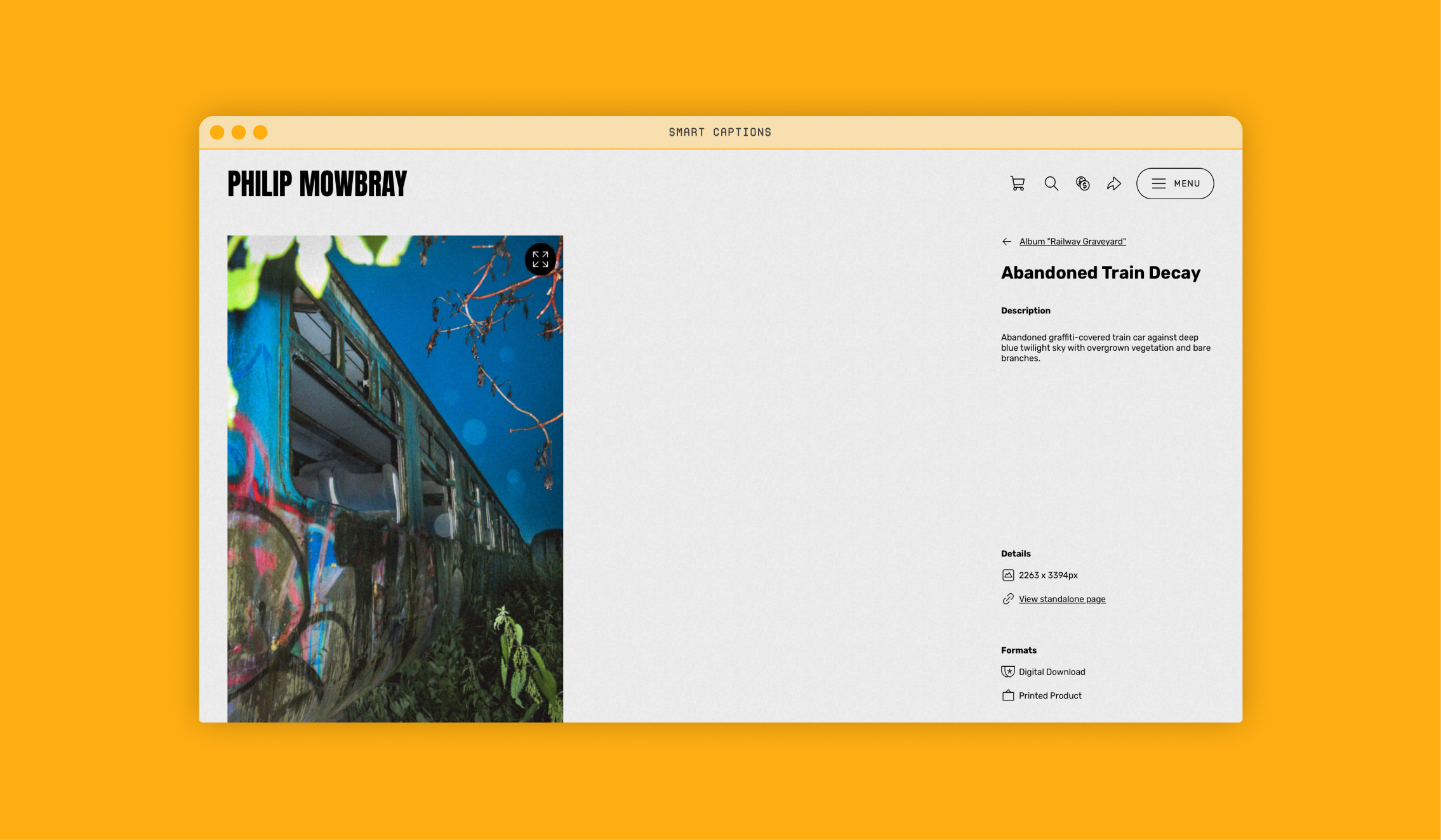
Your images will then appear in your Image Library with their new titles, captions, and tags, and everything will be live on your Picfair Store straight away.
Once you're up and running, we strongly recommend reading our dedicated tips guide to help you get the very most out of Smart Captions (see below).
5 Top Tips to Get The Most From Using Smart Captions
We've put together a dedicated guide with five practical tips on how to get the very most out of Smart Captions for your images and your store. We highly recommend giving it a read to ensure your images get the best possible treatment and to add your own personal touch to any generated text.
5 Expert Tips for Making the Most Out of Picfair's Smart Captions Tool.
Smart Captions FAQs
Still got questions about Smart Captions? We have a dedicated Smart Captions FAQs page in our Support Centre that covers everything you might want to know. And if you can't find what you're looking for, you can always get in touch via the Support Centre directly, and the Picfair team will be happy to help.
Ready to Get Started With Smart Captions?
Smart Captions is one of the easiest wins you can make as a Picfair Store owner. It takes just a few clicks, requires no technical knowledge whatsoever, and the results can make a genuine difference to how your Picfair Store performs.
Well-titled, well-tagged, and well-captioned images look more professional, tell a better story, and are far more likely to be discovered by buyers searching online. All of that adds up to a photography store that works harder for you, without you having to work much harder.
If you haven't tried it yet, now's the perfect time. Head to Smart Captions on your Picfair Dashboard and get started!


