


Smart Captions can instantly transform your Picfair Store’s visibility and appeal, but there are ways to get even more out of it. Here are five expert tips to help you do exactly that

If you're not using Smart Captions for the images in your Picfair Store yet, it's well worth getting started.
The tool generates titles, captions, and descriptive tags for your images using AI, and the impact on your Picfair Store and its searchability can be significant. Images with detailed metadata are far more likely to appear in search engines and AI search. That means more visibility, more potential buyers finding your work, and ultimately more opportunities to sell your photos.
But like any tool, you get out what you put in. If you'd like a full overview of what Smart Captions is and how it works before diving into the tips, take a look at our Ultimate Guide to Smart Captions. Otherwise, here are five tips to help you make the most of it.
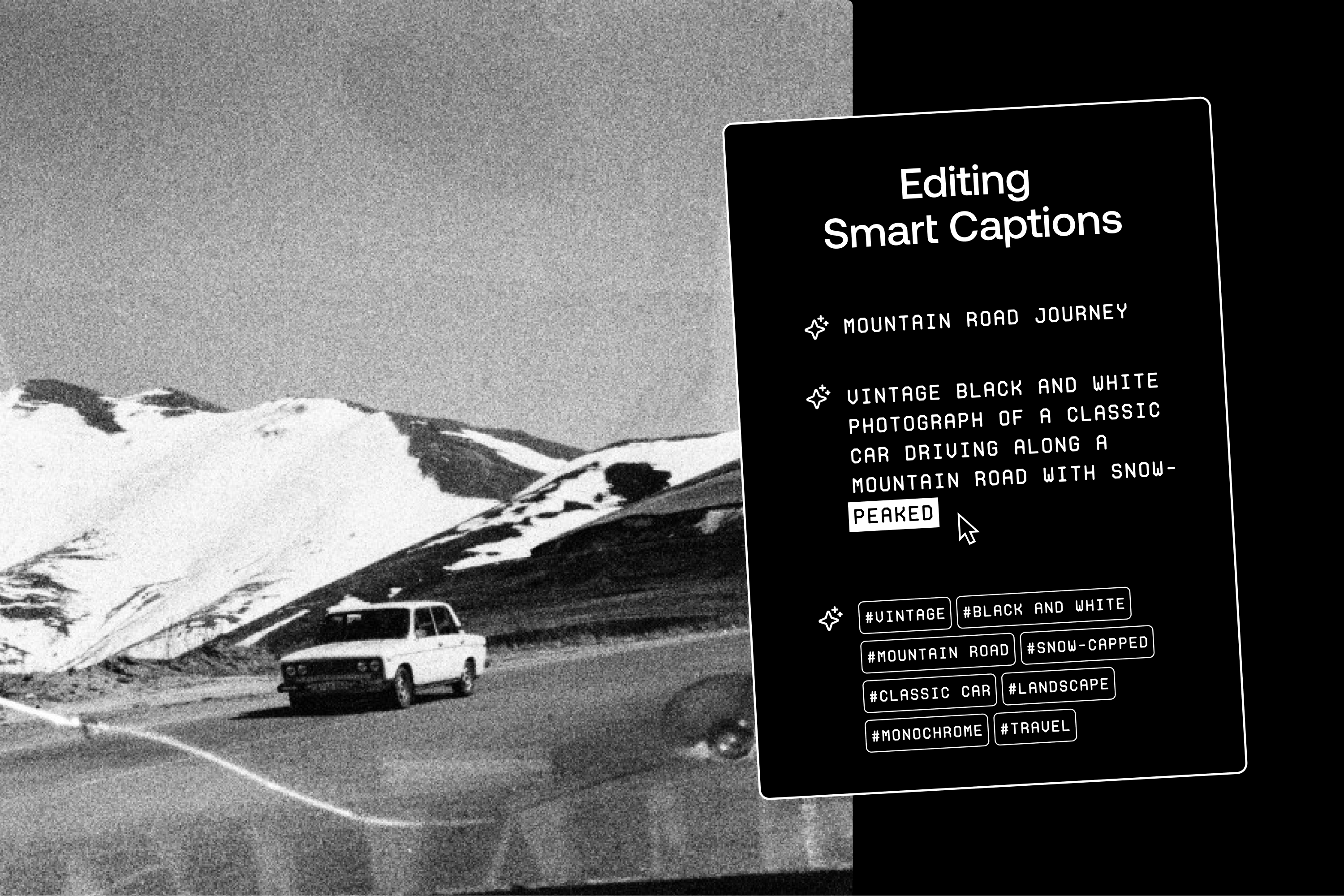
1 Be Consistent With Your Approach to Using Smart Captions
If you're going to title, caption, and tag your images, do so for all of them in your Picfair Store.
It sounds obvious, but it's one of the most common mistakes we see in Picfair Stores. A library where half your images have rich, detailed titles and tags and the other half have nothing at all creates a really uneven experience for potential buyers and visitors. It doesn't look great and can undermine your Picfair Stores’ overall impression. Remember, you want to make a wholly positive impression.
Make Smart Captions part of your regular upload workflow from the start. Get into the habit, keep it consistent, and your Picfair Store will thank you for it.
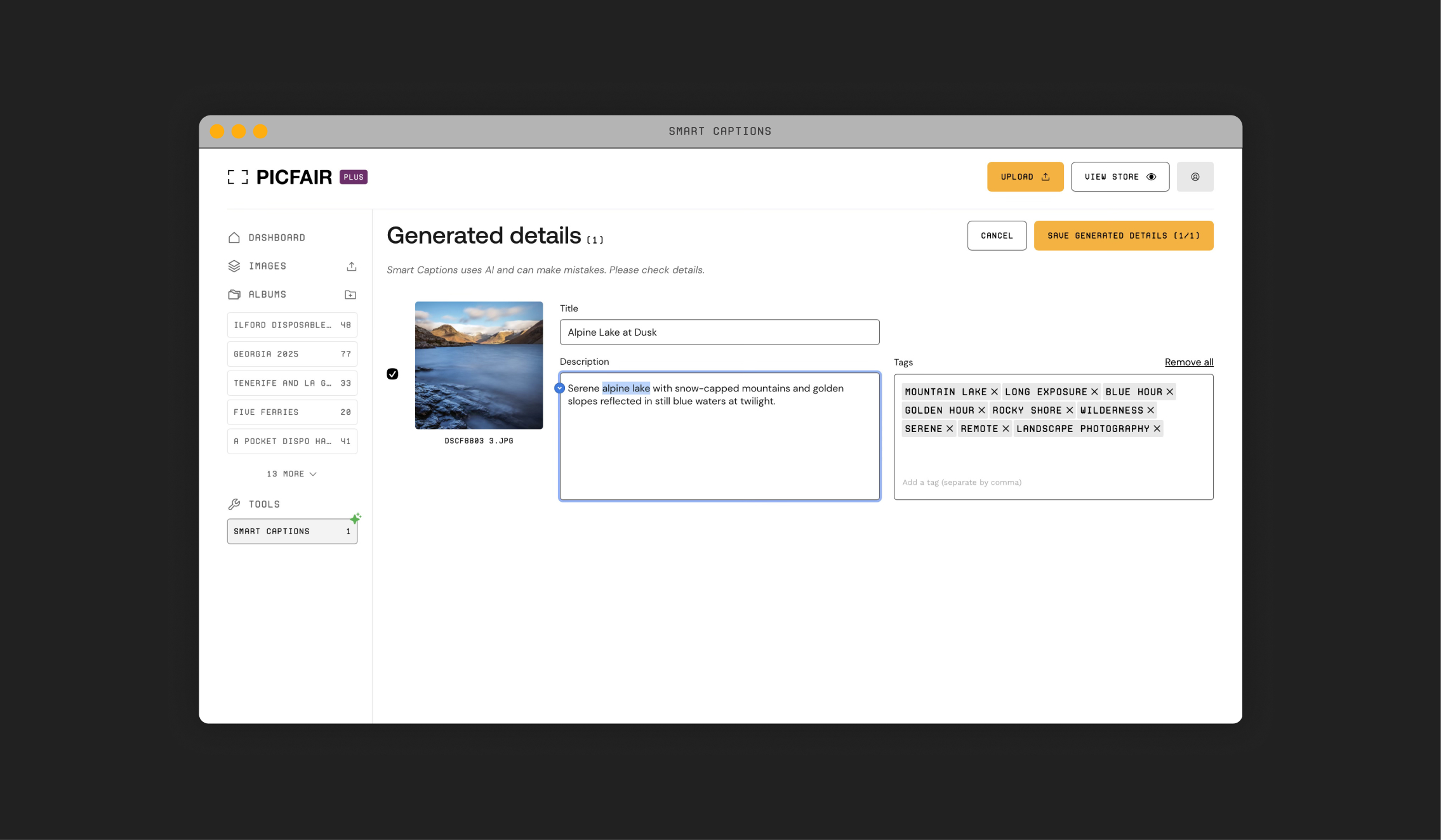
2 Always Double-Check the Details of the Generated Information
This one's really important. AI is impressive, but it isn't perfect. Every time you use Smart Captions, take a moment to scan through everything it generates before you save it. Look out for any factual errors or misidentifications.
It's also worth knowing that saving new Smart Captions details will overwrite any existing metadata you've already added to an image. So a quick review before you hit save is always time well spent. It only takes a minute, and it can save you a headache further down the line.
3 Add Specific Details That Smart Captions Might Miss
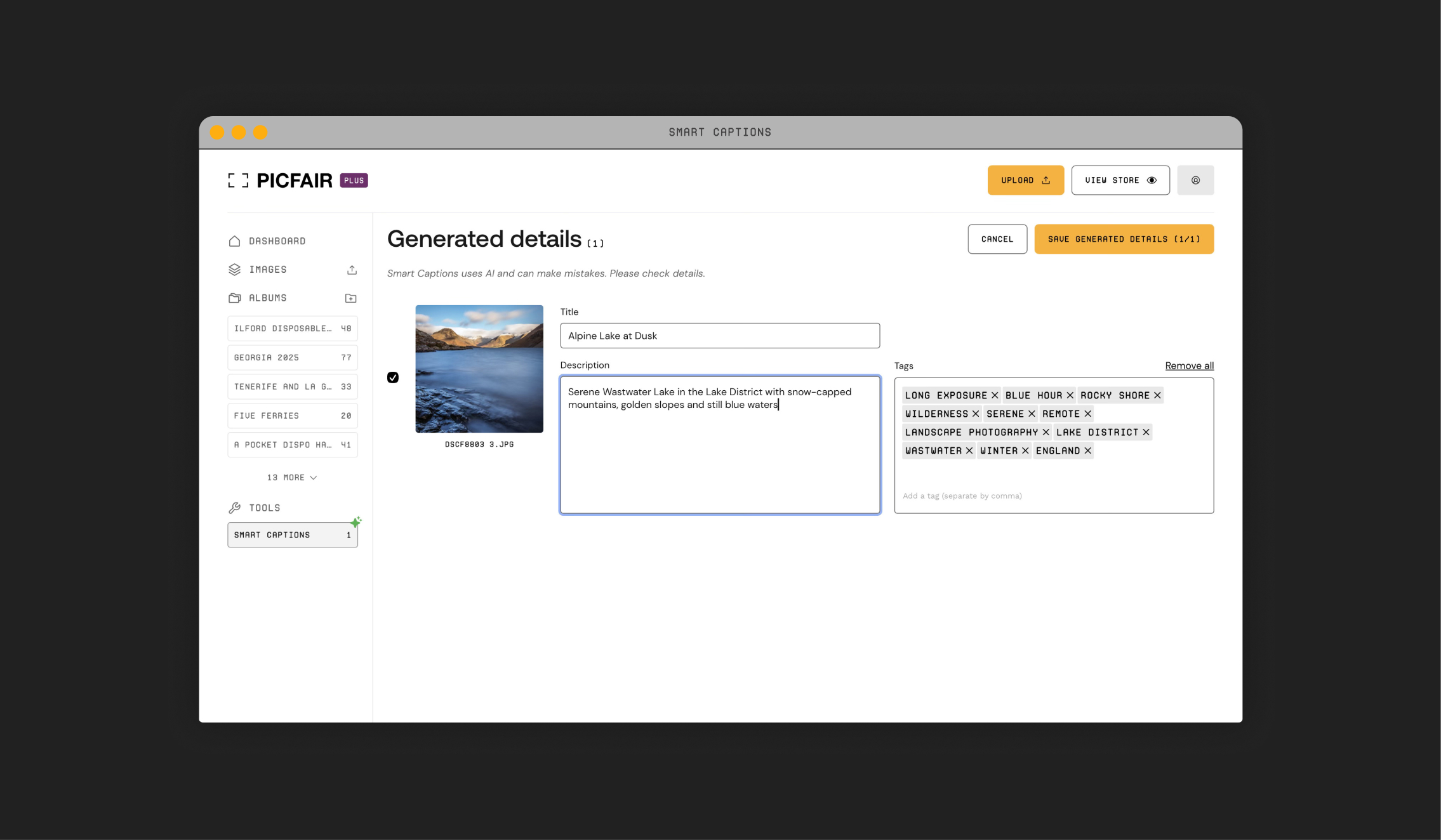
Smart Captions does a brilliant job of identifying the visual content of your images, and it sometimes picks up specific locations and subjects, particularly for well-known or easily recognisable places and landmarks. But this isn't always guaranteed.
The AI can tell that there's a building in your frame, but it might not know it's a specific cathedral, a named monument, or a particular bridge. It can identify a mountain range, but it might not know exactly which one. These details matter, and they're worth adding manually when they haven't been picked up automatically.
Once you've reviewed your generated captions and tags, ask yourself: Is there anything specific here that a buyer might search for? A building name, a landmark, a town, a region, a national park? If it's missing, add it. The more specific and accurate the information, the better your chances of your images showing up in front of the right people.
4 Edit Your Smart Captions to Your Own Tone of Voice
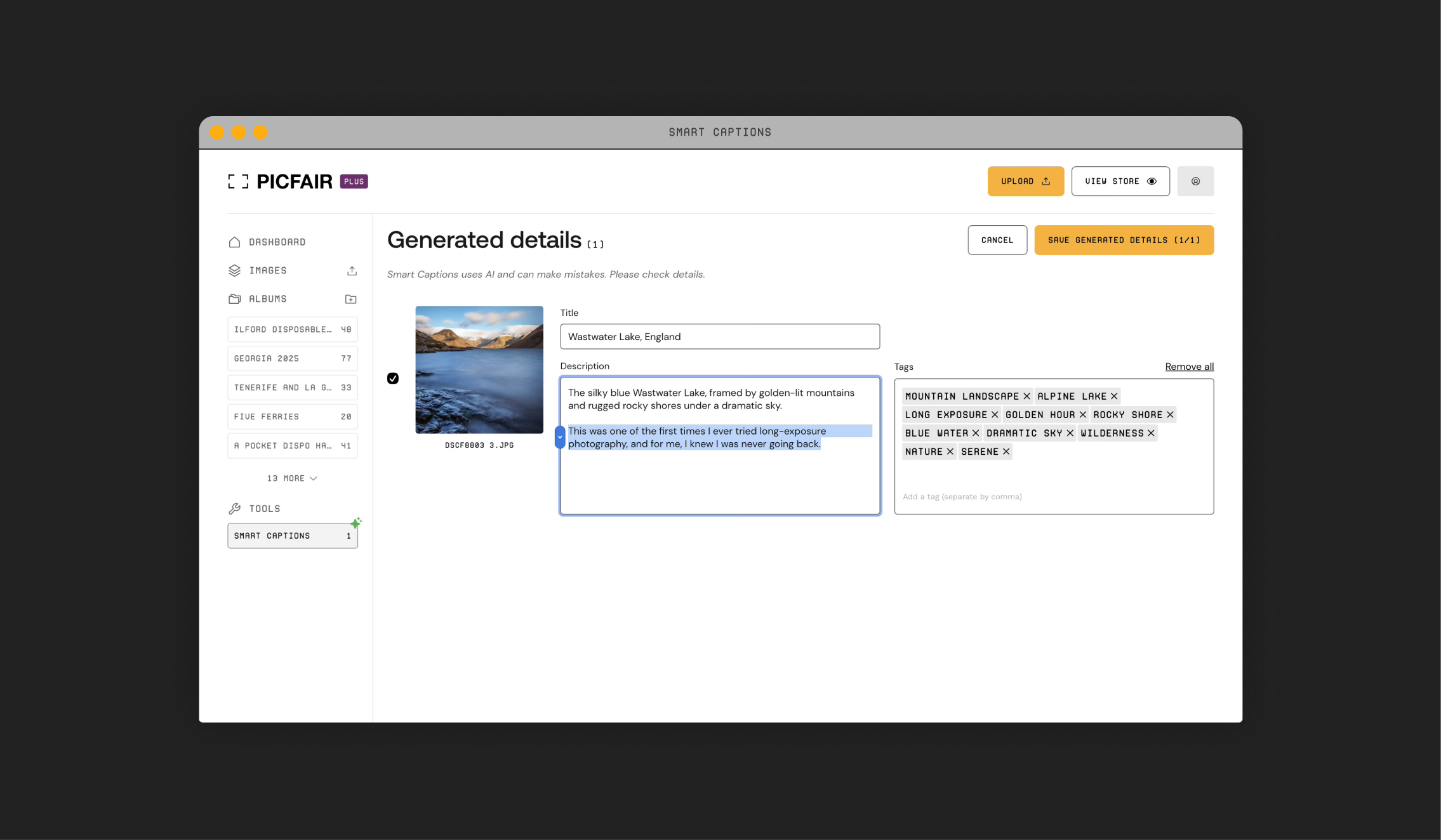
Think of Smart Captions as a springboard, not a finished product. It does the heavy lifting of identifying what's in your images and putting words around it. But here's the thing: the best photography stores have a personality, and that personality should come through in your captions and titles, too.
Once you've got your generated text, take a moment to make it yours. That could be editing the generated copy in a warm and personal way, or in a clean, minimal style, or something else entirely. Edit the captions so they reflect how you want to come across to your visitors. It's a small extra step, but it makes a huge difference to how your Picfair Store feels to a potential buyer.
5 Be Strategic With Your Smart Captioning Batches
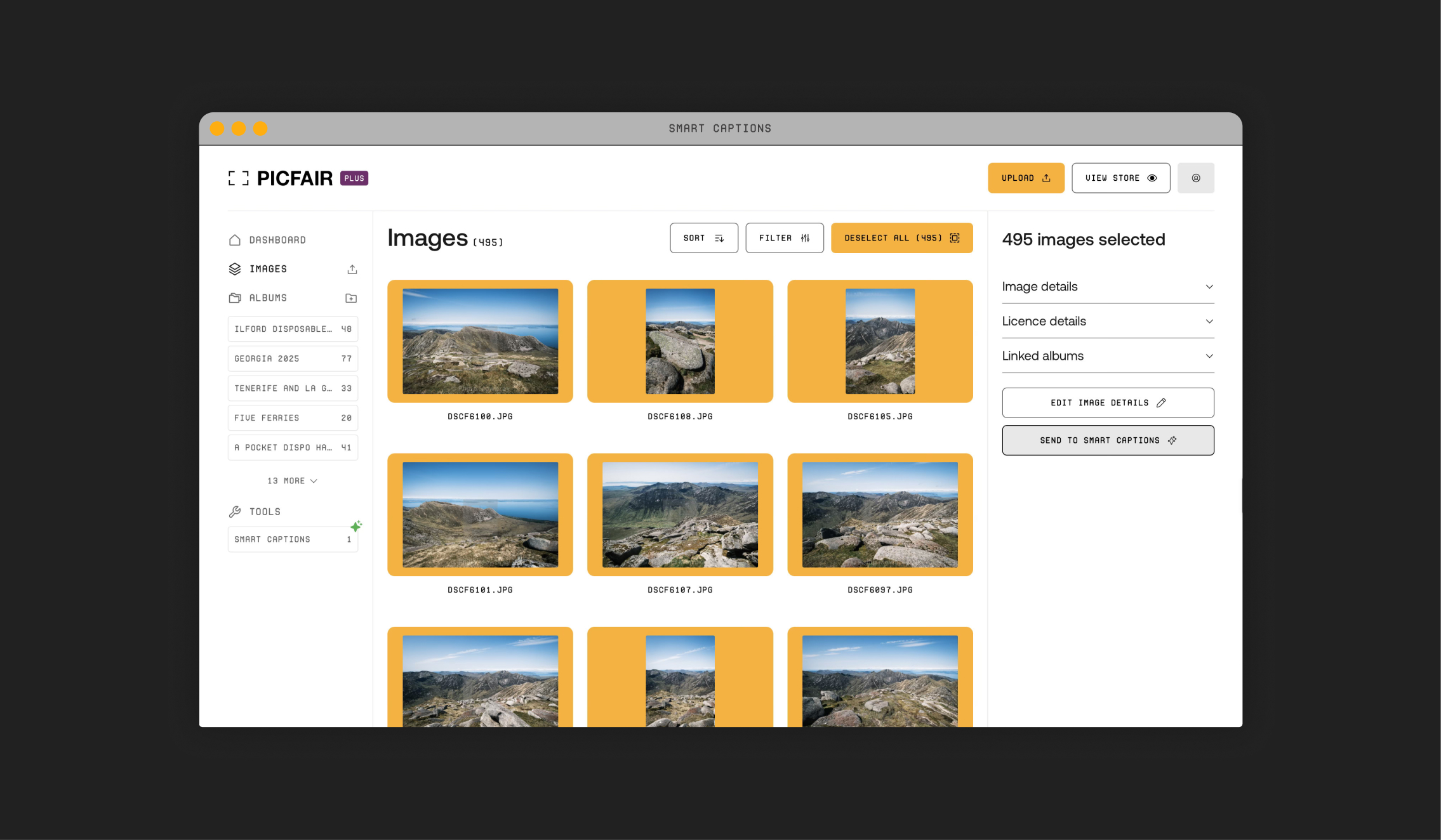
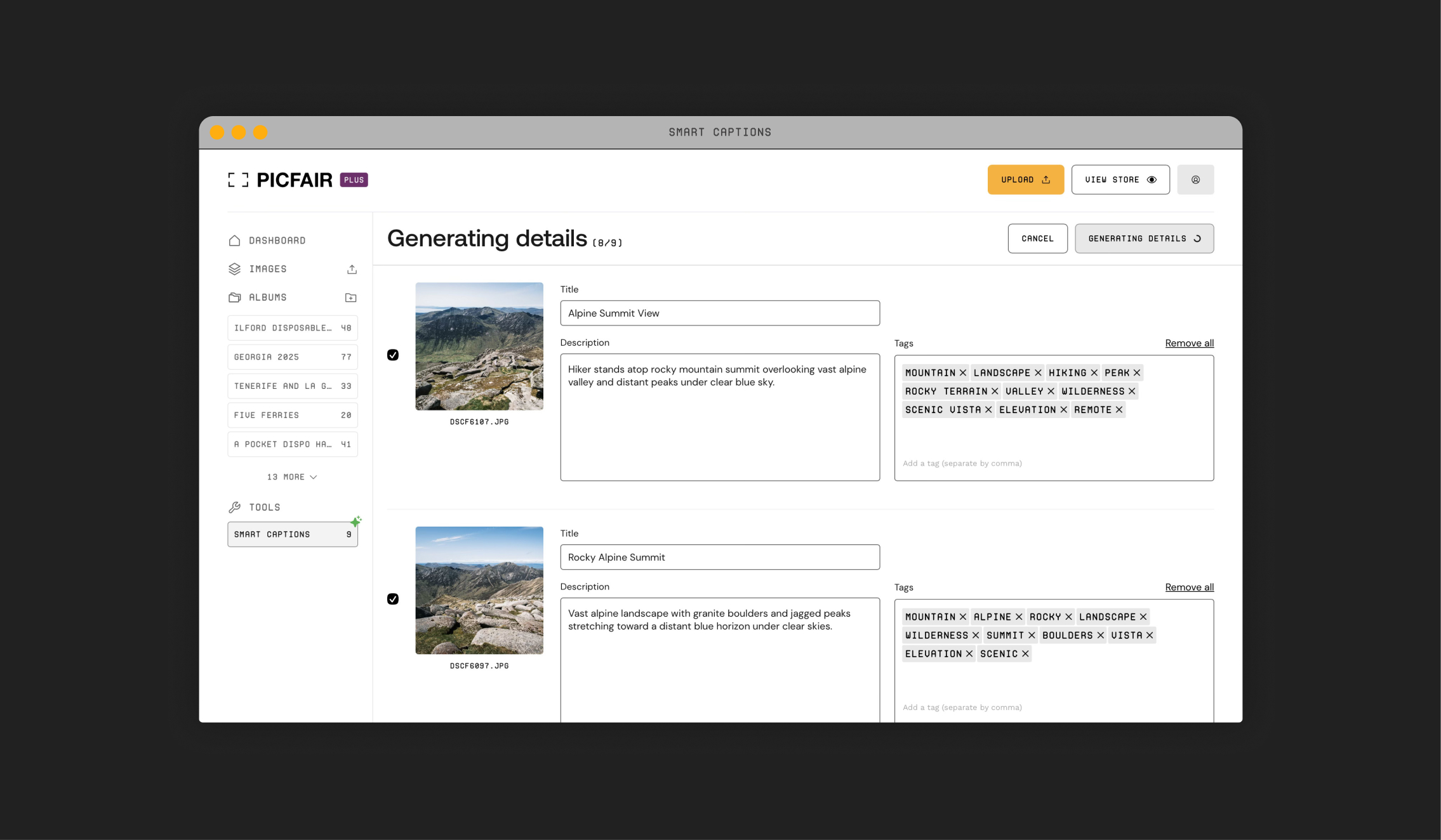
Smart Captions processes images in batches of up to 20, and it's worth being thoughtful about how you group them. Rather than sending a random mix of images from different shoots and subjects, try batching together images from the same location, trip, or theme.
It makes the review process much quicker and more focused. You're checking similar content all at once, which makes errors and omissions much easier to spot. It also helps keep the descriptions feeling consistent across a set of related images in your Picfair Store.
Final Thoughts
Smart Captions is a game-changing tool for your Picfair Store, and if you haven't started using it yet, now's a great time to begin. It takes a lot of the hard work out of captioning your images, and with a little extra effort on your part, the results can be really impressive.
Remember: use it consistently, check everything it generates, fill in any location gaps manually, add your own personality to the output, and be thoughtful about how you batch your images. Do all of that, and you'll have a Picfair Store that's not only more discoverable in search but also a much better experience for anyone who visits it.
Ready to get started? Head to Smart Captions in your Image Library and give it a go! And if you still have questions, our Smart Captions FAQs page in the Support Centre has got you covered.


