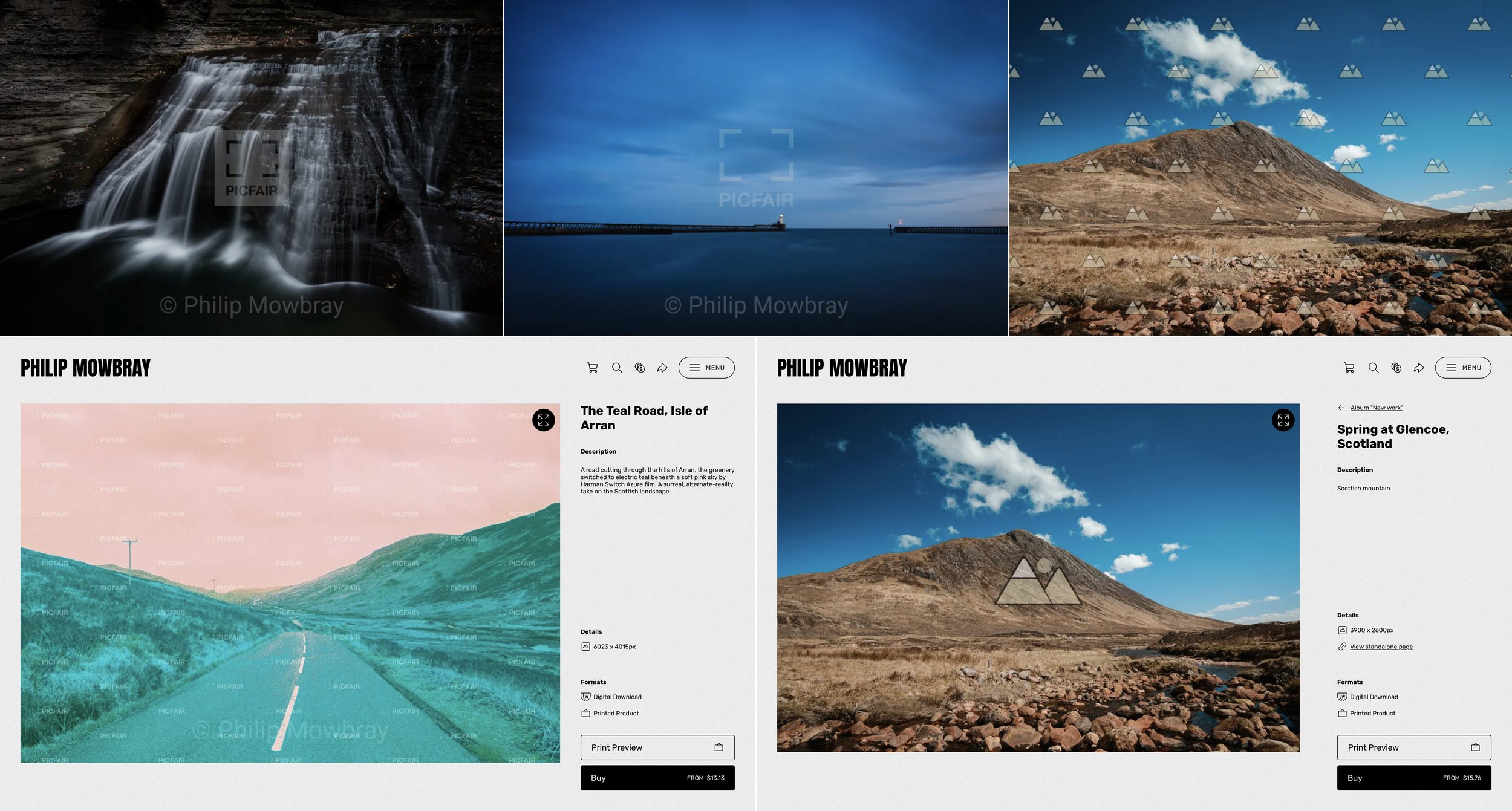


Picfair Feature Update, November 2026: Redesigned and Enhanced Watermarks for Your Picfair Store


Why Did We Update Watermarks For Images In Picfair Stores?
Deciding how to watermark your images has always been a balancing act. Too heavy, and you risk hiding the very details that make someone want to buy. Too light, and you might worry about your work being lifted and used elsewhere. With our latest update, you can now strike that balance in a way that suits you and your photography. This has been a popular request from Picfair photographers, so we’re delighted to finally bring this updated feature to you.
Simply put, you now have far more control over how watermarks appear on your images: you can keep your watermark in the centre of your images, or repeat it across the image for a fuller watermark effect. This applies to both the Picfair watermark (which we’ve also updated and enhanced) and your own custom watermark.
While there’s always been watermark functionality for Picfair Stores, we always want to stay ahead of how images may be copied without authorisation, and how to prevent that. With this in mind, we’ve looked at ways we can enhance watermarks for photographers, and we also want to make sure photographers have complete control over how watermarks look on their Picfair Store, but also that they never get in the way of what makes a customer fall for an image in the first place.
The Types Of Watermarks Available For Images In Your Picfair Store
Picfair Logo
Picfair Logo with Background, Central Position: The Picfair logo sits on a background in the centre of your image, making it the most visible of the Picfair logo options.

Picfair Logo, Central Position: A cleaner, single Picfair logo placed in the centre of your image.
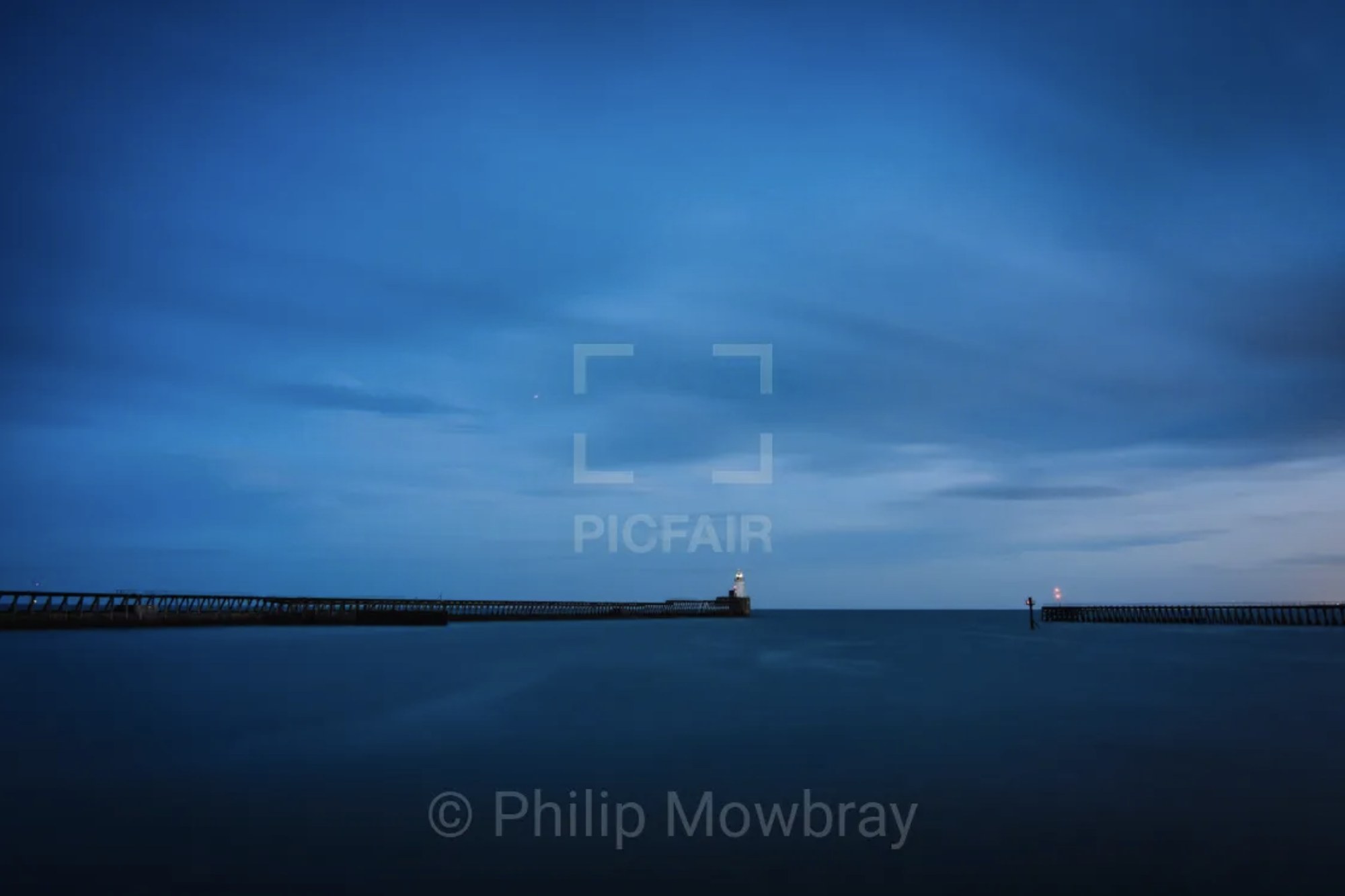
Picfair Logo, Repeated Across the Image: The Picfair logo is repeated across the whole image, making it much harder to crop out.

Custom Watermark
Single Placement*: Your own watermark appears once on each image.

Repeated Across the Image*: Your own watermark is repeated across the whole image for maximum protection.

*For a custom watermark, you can also adjust the opacity (how transparent it is) to control how visible it is across your images. While we always recommend uploading a graphic or logo style file, you don’t have to; it can be anything you like so long as it fits in with our upload requirements (800px max dimension, under 500KB).
No Watermark
No watermark at all on your images: Buyers see your images exactly as you intended, with nothing sitting on top of them.

What Type Of Watermark Best Fits Your Work? Picfair Recommends:
Event and commercial photographers: go for stronger protection
Images from events and commercial shoots are generally sold for download, which means they’re often destined for websites, social media and marketing materials. A clean, unwatermarked preview is easy to screenshot and use online without paying for it, especially by people who appear in your event photos. Here, a watermark repeated across the image makes the most sense. If you choose a custom watermark with your own logo, you also get to reinforce your brand every time someone views your work.
Everyday, outdoor, and travel photographers: a lighter touch
We’re not saying don’t watermark at all, but if you have images that need to give that wow factor straight away, like a stunning seascape, a heavy watermark can get in the way of the very thing that makes someone want to buy it. A single, centrally placed Picfair logo, or a custom watermark with the opacity turned down, will still protect your work while letting the image speak for itself.
Images catered to the print market: lighter still
If your images mostly sell as prints, buyers want to take in the detail, colour and composition before they commit to having it on their wall. A screenshot is rarely good enough for a quality print, so the risk is lower here. A single placement at low opacity, or even no watermark at all, lets your images look their very best. And don’t worry, whichever option you choose, watermarks are always removed from images that are bought as prints or digital downloads.
How to Configure Watermarks in Your Picfair Store
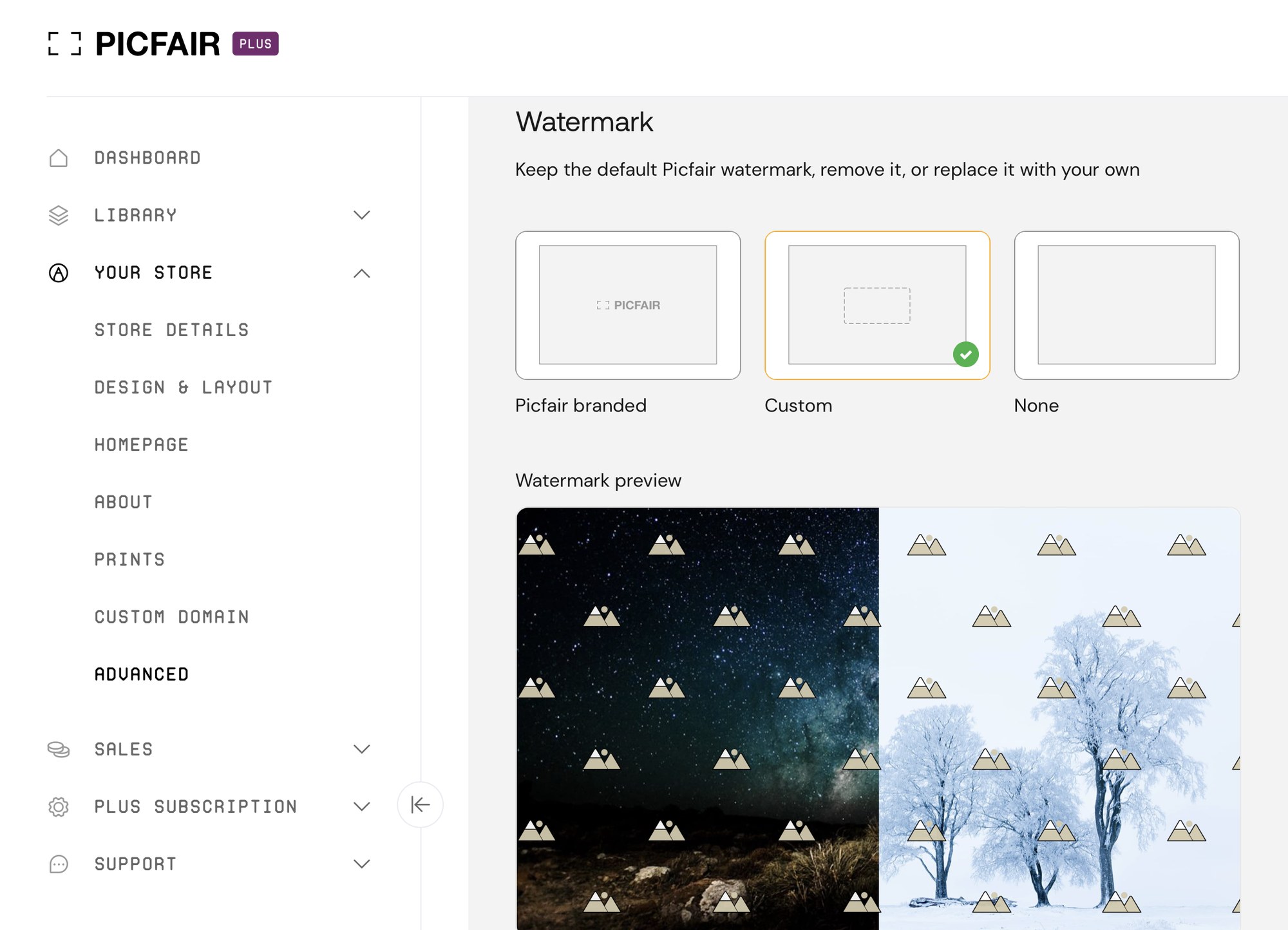
From your Dashboard, go to Store Settings and then Advanced.
1 Find Watermarks
View the Watermarks tab to see all of the options available to you.
2 Choose Your Watermark
Select one of the Picfair logo options, Custom Watermark, or No watermark if you’d rather your images appear without one.
3 Upload Your File (Custom Watermarks Only)
Click Upload and choose your file. Once it’s uploaded, you’ll see the file name next to Current File.
4 Pick Your Placement and Opacity
For a picfair logo or custom watermark, choose between a single placement or repeating it across the image, for custom watermarks only, adjust the opacity until you’re happy with how visible it is.
5 Save Your Changes
Click Save changes, and you’re all set. Bear in mind it can take a little while for your new watermark to appear across your images, especially if you have a lot of them in your Picfair Store.
Tips For a Good Custom Watermark
If you’re going down the custom route, for a more in-depth look, take a look at our previous guide, Custom Watermarks, but here are the key things to keep in mind:
Use a PNG. A PNG with a transparent background means only your logo or text appears on your images, with no white box around it.
Stick to the upload requirements. Your file needs to be no more than 800px on its longest side and under 500KB. If your file is too big, a free tool like TinyPNG can help reduce it without losing quality.
Base it on your logo. If you have a logo, use it or a simplified version of it. A distinctive font and a colour scheme that matches your Picfair Store will help make your brand instantly recognisable and consistent.
Keep it simple if you’re repeating it. A clean, compact design works best when it’s repeated across an image. Anything too detailed can quickly become busy and distract from your photography.
Test it on light and dark images. A watermark that stands out on a moody night shot might vanish against a bright sky, so check how it looks across a range of your images before settling on it.
Experiment with opacity. Try a few different levels and see what suits your style and the type of work you sell, using our recommendations above as a starting point.

Final thoughts
At Picfair, we know you’ve been asking for enhanced watermarks, and we’ve been listening. Having taken your thoughts, feedback, and suggestions on board, we genuinely hope these new additions and enhancements to the watermark feature for your Picfair Store address your concerns, needs, and expectations.
Remember, there will always be some level of risk when you’re displaying and selling your images online, and that’s something all photographers need to accept, but we believe the benefits outweigh the risks.
We’re looking forward to seeing you put these new watermarks to use across your Picfair Store. If you haven’t signed up yet, we hope this gives you that little more encouragement to do so, knowing you’re fully in control of the watermark setup for your images and you choose how visible you want it to be.