

Just Landed: New Print Previews For Your Picfair Store
What Are The New Print Previews For Your Picfair Store
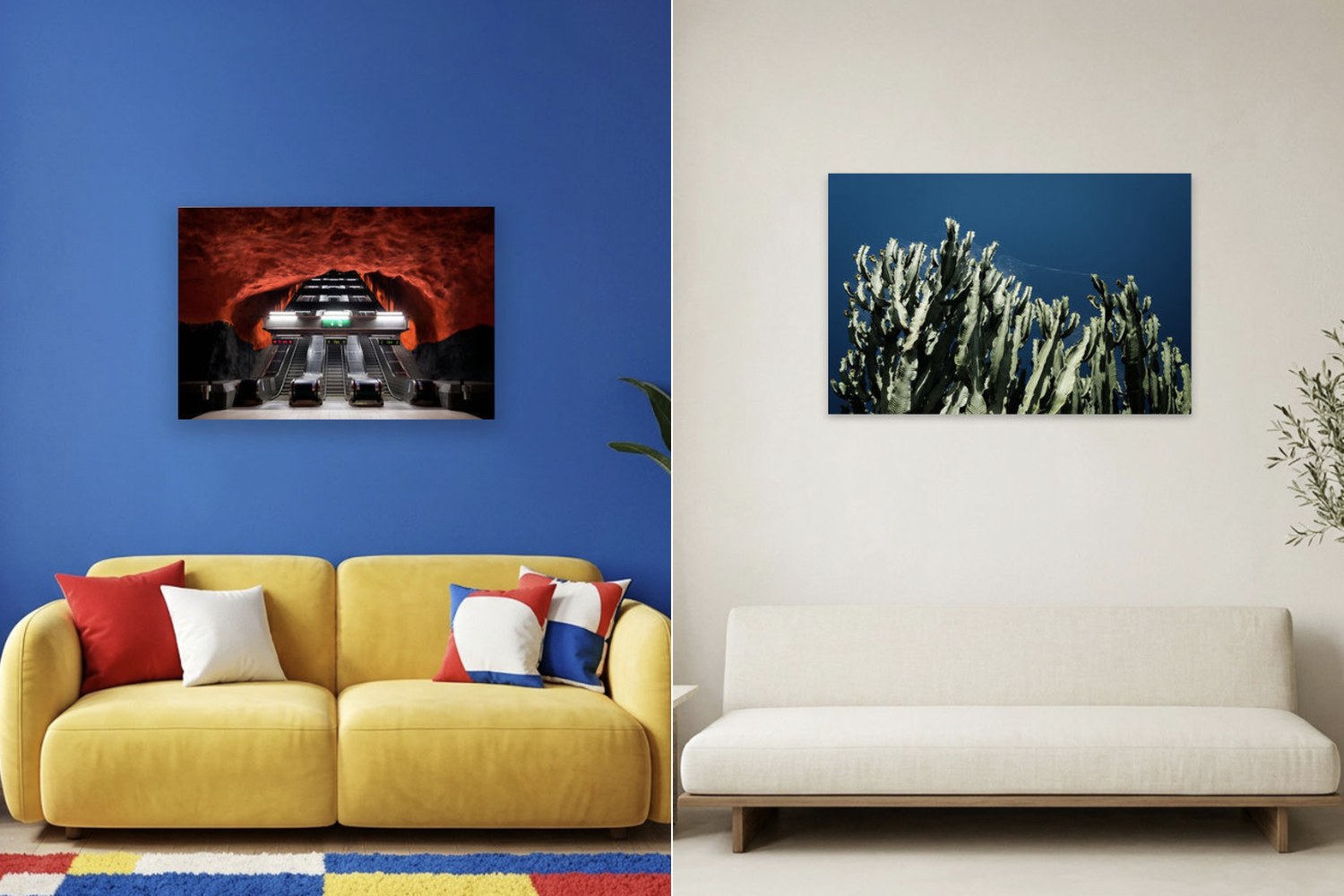
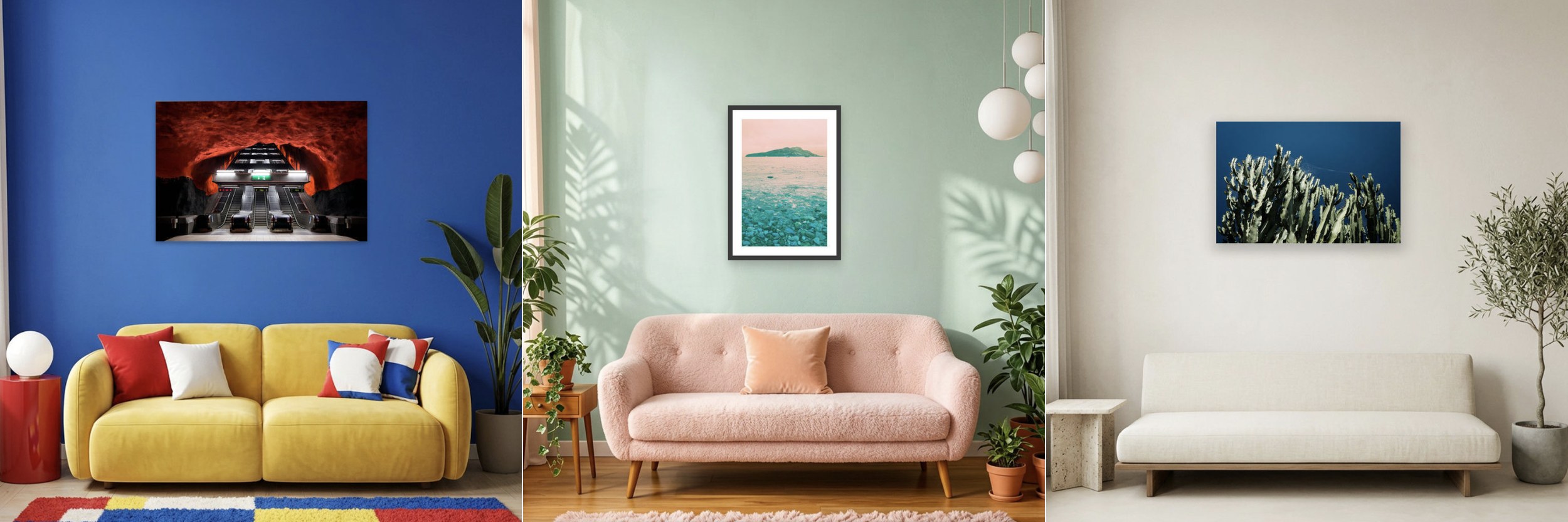
Print previews show buyers how your image will look as a wall print before they order. You choose the room background, and it’s used for every image in your store.
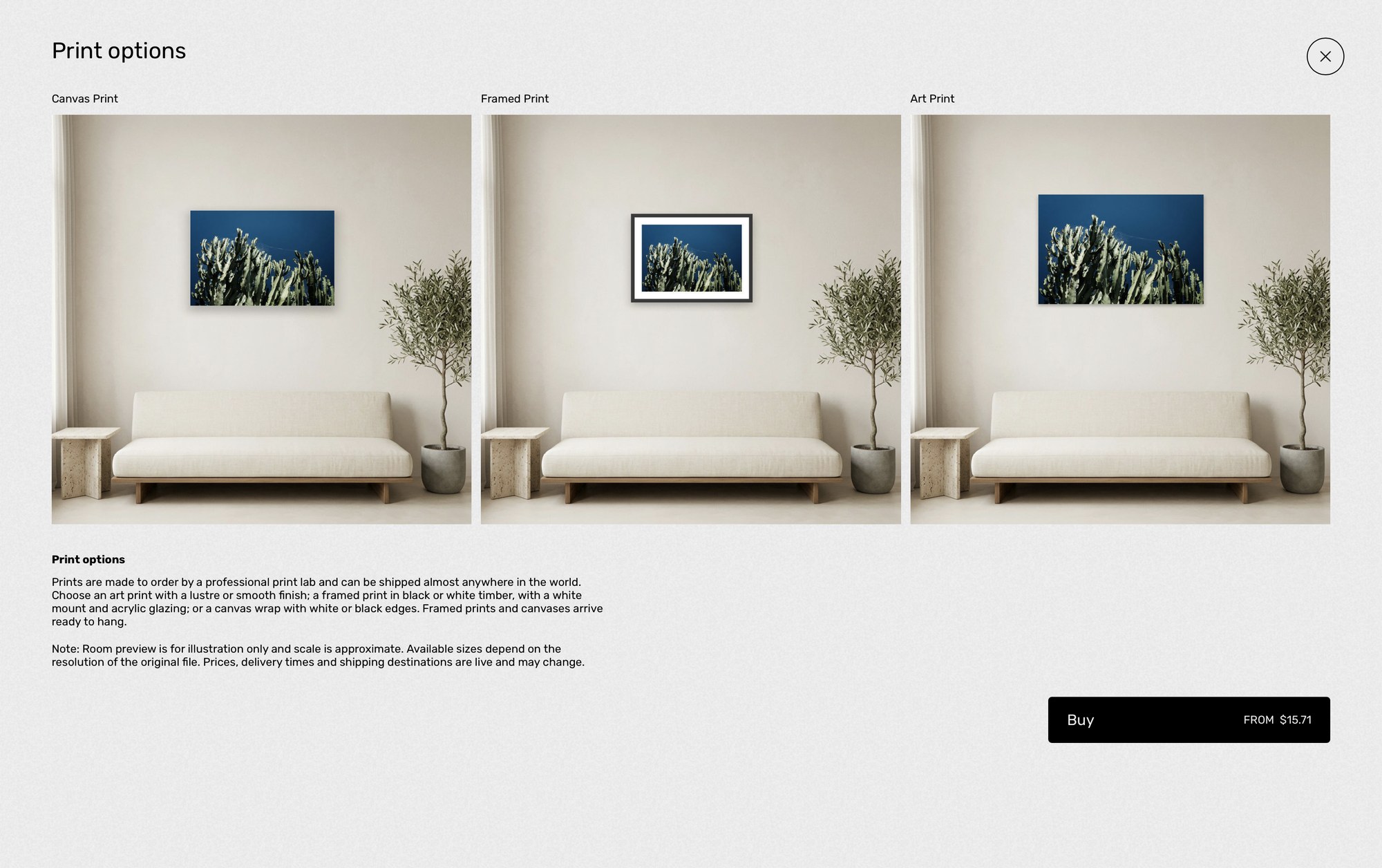
If prints are available in your store, each image page now has a Print Preview button next to the Buy button. It opens Print options, which show your image as a Canvas Print, Framed Print and Art Print in your chosen room. Below the previews, you’ll find a short description of each print product and a Buy button that takes customers straight to the print checkout.
Why Does Seeing A Print On A Wall Make Such A Difference?
When visitors or potential customers can see one of your images on a wall, especially a wall that looks like their own home and taste, they feel far more confident about buying it.
Simply put, it’s one more step in the sales journey that can turn a browser into a buyer.
At Picfair, we’re always looking for new tools that help our photographers sell their work, and we think this one will come in really handy, wherever you are on your photography journey.
I Thought Customers Could Already See A Print Preview When Ordering. What’s Changed?
Until now, customers only saw print previews inside the ordering process, after clicking through several options, and the visuals were limited. Now the previews sit right on the image page in your Picfair Store, so customers can see your image in situ as a print without going through the ordering steps first.
You can still see a print preview during checkout. We haven’t taken that away, and we’ve made it better too. Once a buyer has picked their product, finish, size and crop, the preview step now shows the print hanging in your chosen room, in the frame colour or canvas edge they’ve selected. So the room your customers fall for on the image page is the same one they see right up to the moment they buy.
We’ve moved print previews to the front of the customer experience, and we think that will encourage more customers to buy your work.
Sounds Great. How Do I Get Started And Choose My Background?
Setting up your print previews takes less than a minute:
1 In your Dashboard, go to Your Store › Prints.
2 Under Print previews, click Choose Background Style.
3 Pick from ten room backgrounds: Mid Century, Classic, Pop, Minimal, Industrial, Club, Scandi, Soft, Vintage or Coastal.
4 Click Apply Background Style.
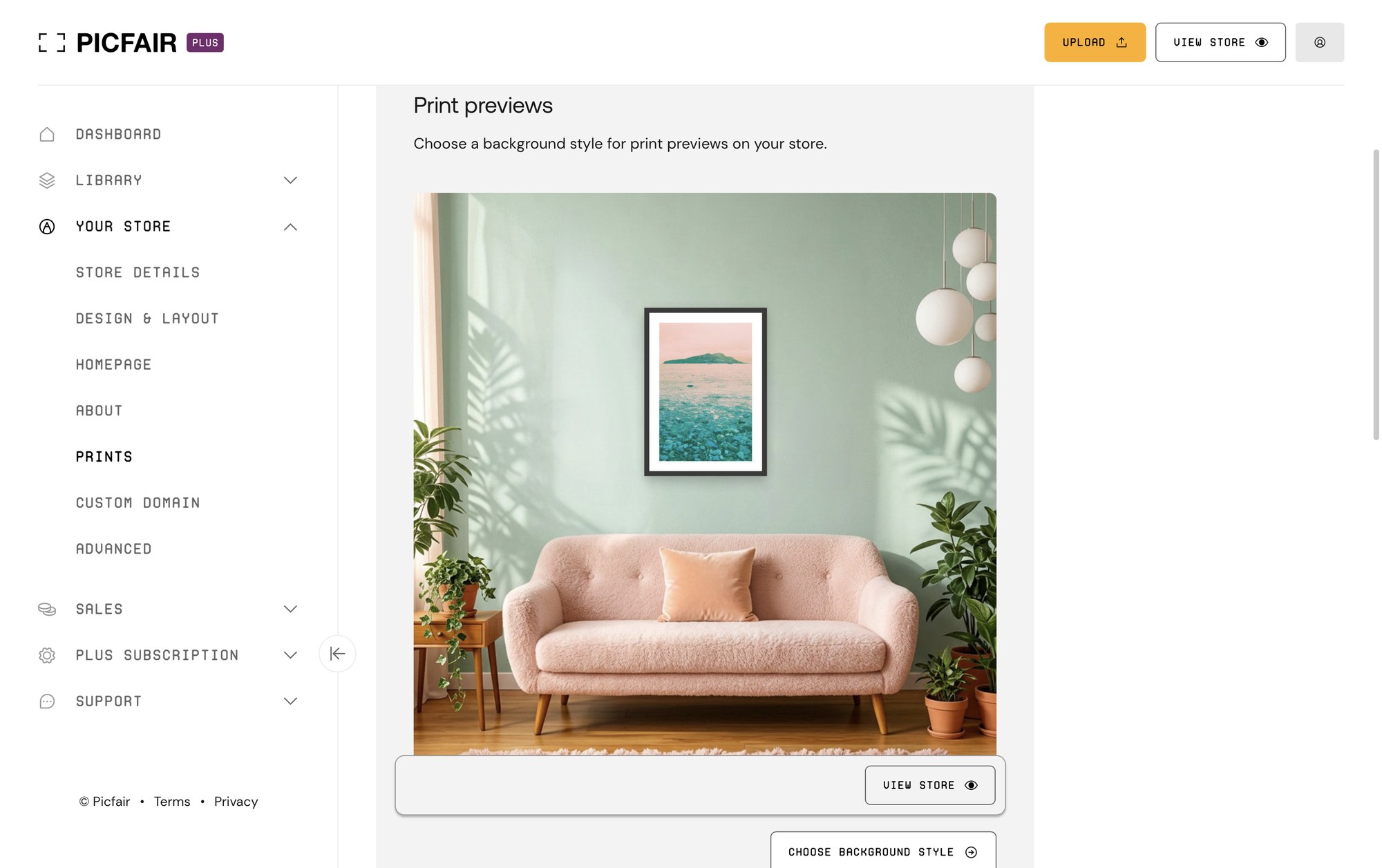
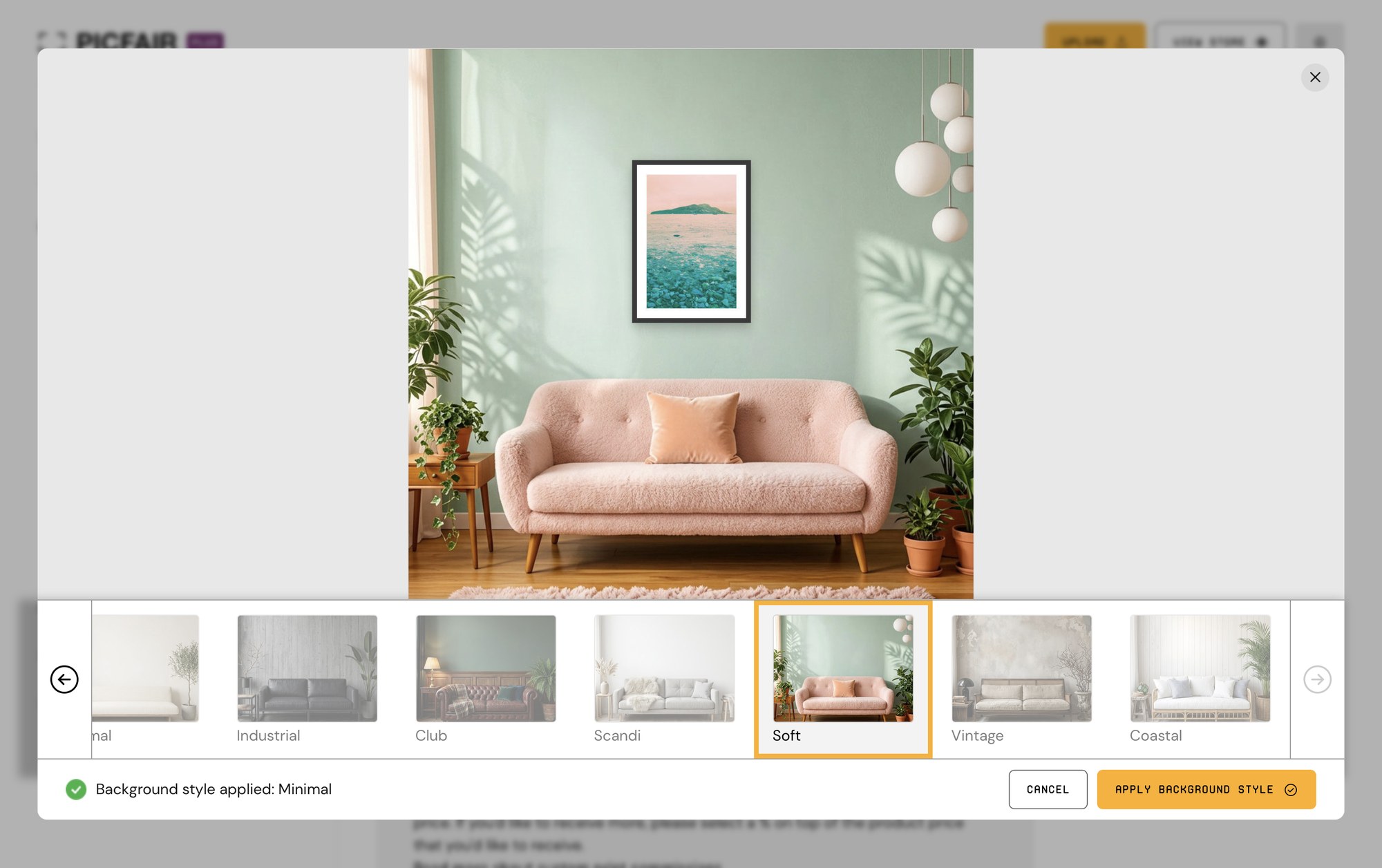
That’s it. Your store uses Classic until you choose another style, and the room you pick applies to every image in your Picfair Store.
Test Out The Room Settings With Your Images Before Choosing
You don’t have to guess which room will suit your photography style.
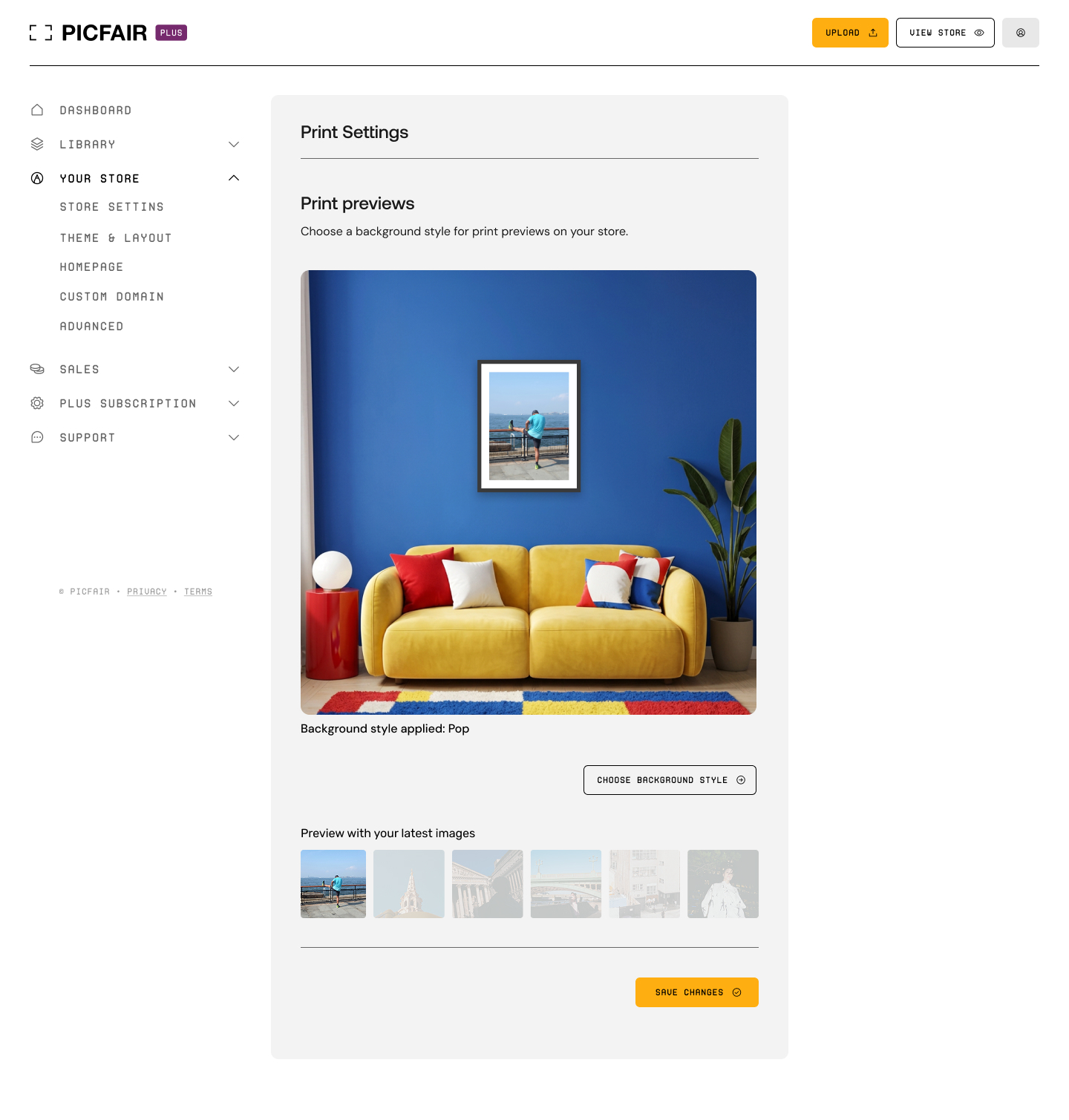
Under Preview with your latest images, choose one of your recent uploads and you’ll see it as a framed print on each background, so you can compare them before you commit. If you haven’t uploaded any images yet, we’ll use a sample image instead. And remember, once you’ve committed to a room style, it doesn’t mean that you need to keep that style forever, you can swap and change it at any time!
How To Make Your Print Previews Work Hard For You
Match the room to your work and style. Think about who buys your photography and where they’d hang it. For example, coastal is a natural home for seascapes, Industrial suits urban and architectural work, while Scandi or Minimal are fantastic for clean, graphic images. If your work is warmer or moodier, try Club or Vintage, and if colour is your thing, Pop or Soft could be a great fit.
Test it with a range of images. You can only set one background for your whole store, so pick a room that works across your portfolio, not just your favourite shot. Try a few images with different tones and orientations before you decide.
Upload your files at full resolution. The print sizes on offer depend on the resolution of your original file, so the bigger your file, the more options your buyers get. Learn more in our Ultimate Guide to Picfair Prints.
Check your custom print commission while you’re there. Custom print commission is also set on the same Prints page, so it’s a good moment to add one if you haven’t already, or make sure it’s where you want it.
Share your image pages, Picfair Store URL. When you post your images on your social media profiles, or wherever you reach out to your network, link straight to the image page so people can hit Print Preview and see it on a wall straight away.
Revisit it now and then. If your portfolio changes style or direction, or if you’re promoting a new series, check that your room still fits, and if not, change it!
Keep These 3 Things In Mind Too:
1 Room previews are a guide, and the scale is approximate.
2 If prints are turned off for your account, the Print Preview button won’t appear in your store. Find out more in our FAQ: Why aren’t my prints available?
3 For more information on setting a custom print commission, see: How do I add a Custom Print Commission?
Ready to Give Print Previews at Try?
We hope this guide has given you everything you need to get started and choose the best print preview for your images and Picfair Store.
Simply head to Your Store › Prints on your Dashboard, pick your room style and see your work on the wall as a print preview, set the one you like the most and that’s it!
For the full details, take a look at our support article: How do print previews work on my Picfair Store?