


We've rebuilt the Picfair Store homepage from the ground up. Here's how to stack, reorder and shape content blocks into a homepage that tells your story and puts your best work first.

Your Store, Your Way: Inside the New Picfair Homepage Builder
For a long time, the Store homepage was where you picked a view from a dropdown, saved it, and that was that. It did the job, but your images sat in the same fixed layout as everyone else's, with no real way to say who you are or what you want people to look at first.
That's changed. We've rebuilt one of the most requested areas of Picfair Stores, and your Store homepage is now something you build yourself, block by block.
Here's what's new, how it works, and a few ideas for making the most of it.
Your Store Homepage: A Page You Design
Previously, your homepage was one fixed view: Images, Albums or Featured Album Images, chosen from a dropdown and locked in place. Now it's made up of content blocks you can stack, reorder and configure however you like. It's less like changing a setting and more like laying out a page.
If you already have a Picfair Store you've configured and curated, you don't need to worry about logging in and finding everything rearranged. Your existing setup has carried over automatically. Whatever your homepage was showing before is already active as a block, along with your Store Description if you had a bio switched on. Nothing changes for your visitors on day one; you've simply got the tools to build on it.
If you're just setting up, your Images block is switched on by default, so you start with a full grid of everything you upload. From there, it's entirely up to you.
The Content Blocks You Can Add to Your Homepage
You can find all these by navigating to your Dashboard and going to Your Store > Homepage
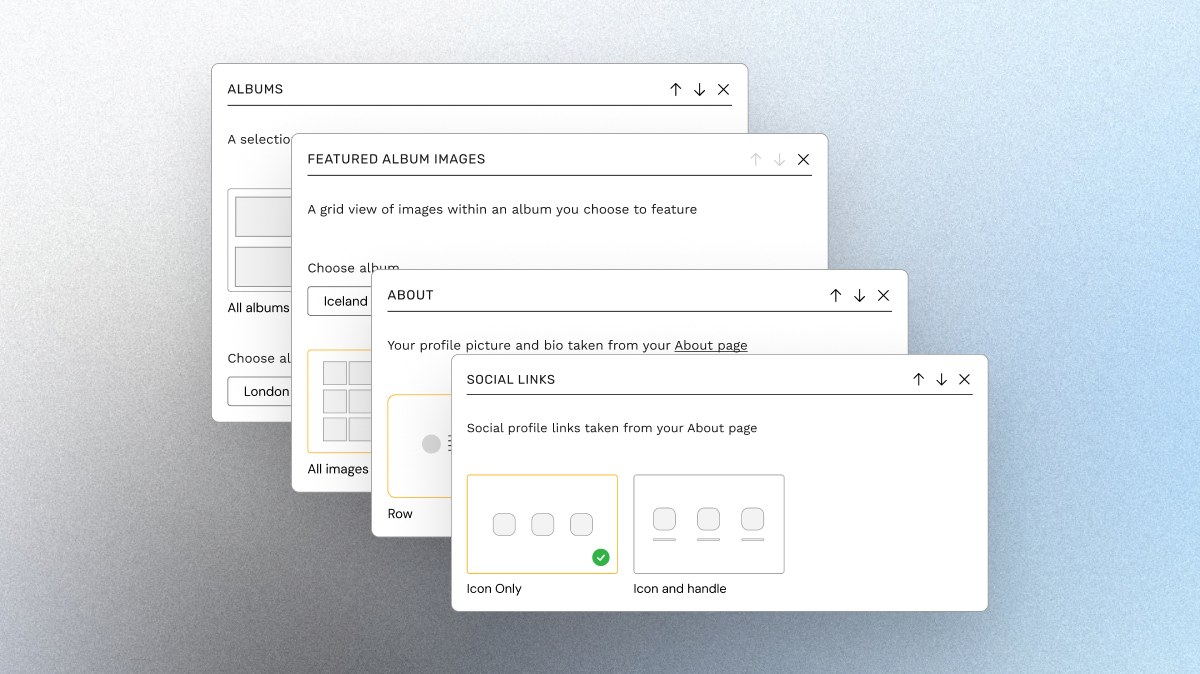
There's an expanded set of blocks to choose from, and each one does a slightly different job:
- Images: a full grid of everything in your Store
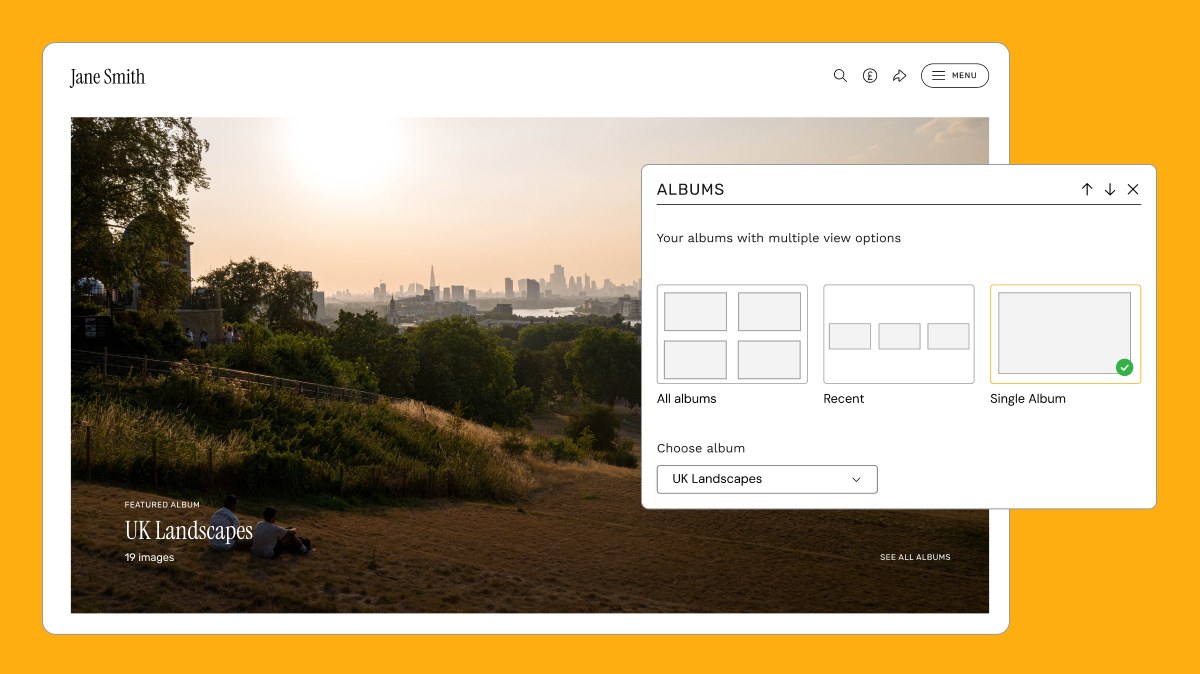
- Albums: show all your albums, just your latest three, or spotlight one specific album
- Featured Album Images: put a single album's best work front and centre
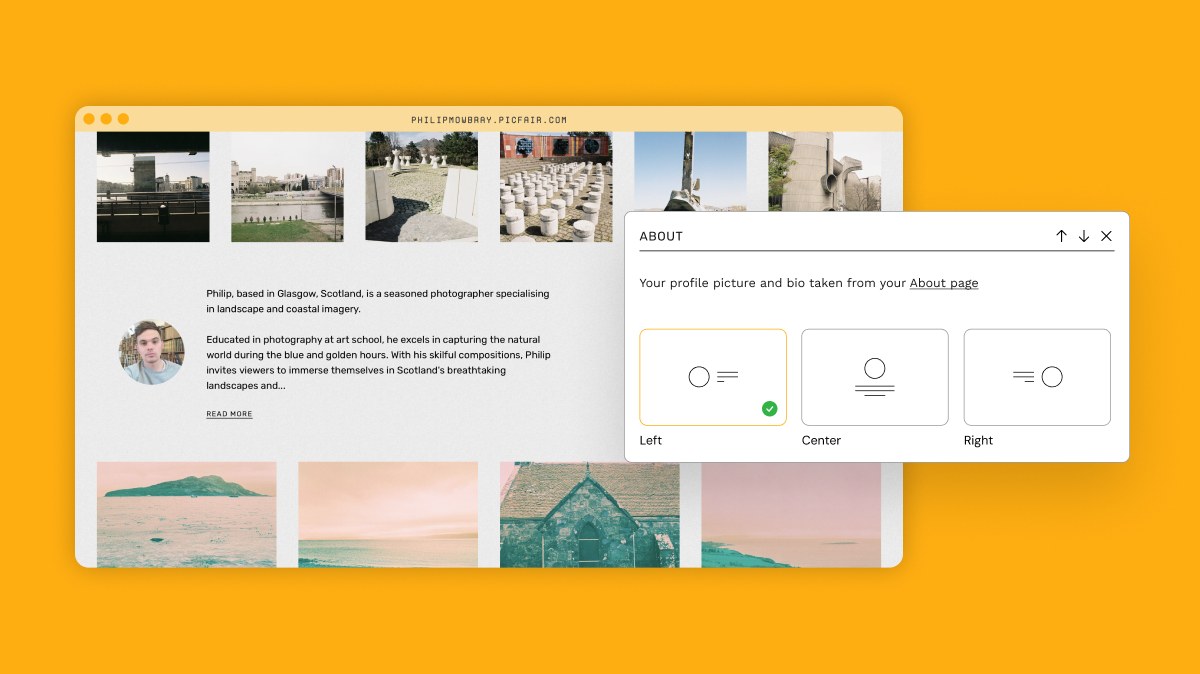
- About: pulls your profile picture and bio straight through from your About page
- Social Links: your Instagram, X, Facebook, TikTok and website, all in one place
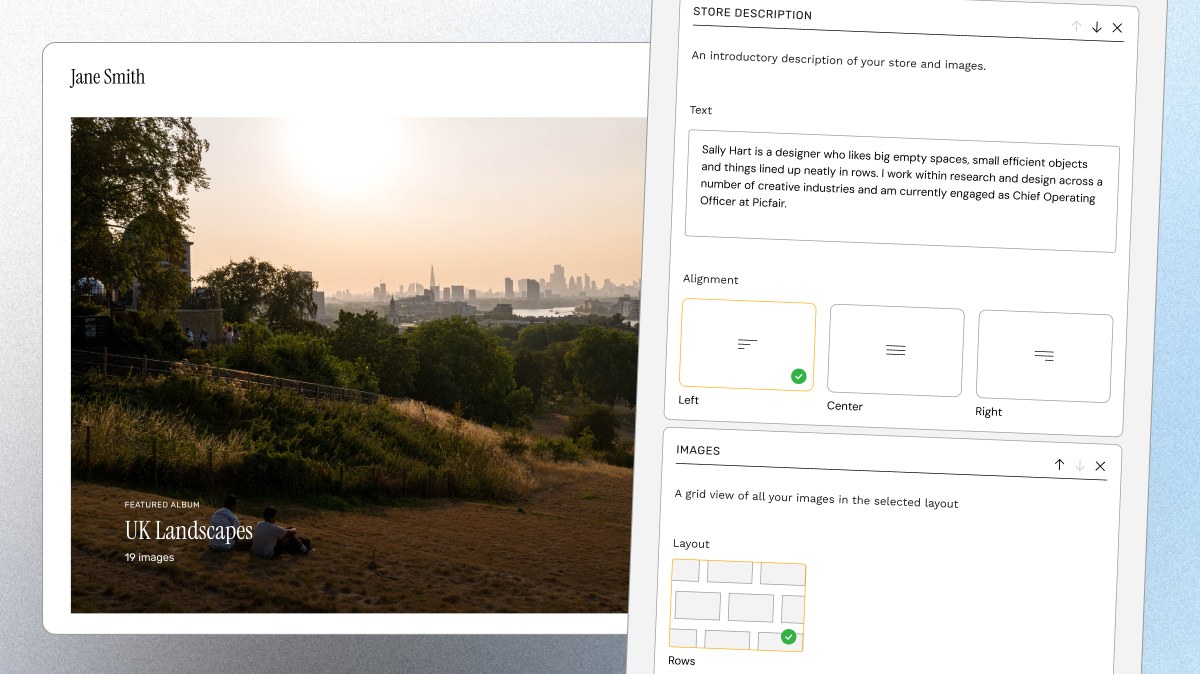
- Custom Text: up to five free-text blocks for anything else you want to say, introduce yourself and your work, with control over text alignment
Move each block with simple up and down arrows, and remove it with one click. Nothing is ever deleted, though. A removed block returns to your list of available blocks, ready to bring back whenever you like.
When you're happy with your layout, hit Save Changes. A bar appears at the bottom of the screen when you have unsaved edits, so you don't accidentally lose anything.
Four Ways to Put Homepage Builder to Work
A few layouts worth trying:
- Lead with your strongest album. Set an Albums block to a single album and put it at the top so visitors see the series you're proudest of first.
- Tell people who you are. Add an About block near the top with a short Store Description beneath it. Buyers connect with the person behind the camera, and a couple of honest sentences go a long way.
- Keep it image-first. If you'd rather let the work speak, stick with a clean Images grid and add Social Links at the bottom. Simple, and it works.
- Use Custom Text for context. Announce a new series, share the story behind a body of work, or point people towards your favourite prints. You've got five blocks to play with.
Why it Matters to Have a Standout Homepage
A standout store from the get-go makes a great first impression and often becomes the moment someone decides whether to buy one of your photos. With the new homepage builder, you're no longer boxed into someone else's idea of what a photography store should look like. You decide what visitors see first, what gets emphasis, and how you tell your story.
Ready to Get Started With Your New Homepage?
Head to your dashboard and open Your Store > Homepage. Start with the homepage builder: add a block, move things around, hit Save Changes, and watch it come to life.
It only takes a few minutes to make your Store feel genuinely like your, and if you get stuck, our support team is always happy to help.
Move each block with simple up and down arrows, and remove it with one click. Nothing is ever deleted, though. A removed block returns to your list of available blocks, ready to bring back whenever you like.
When you're happy with your layout, hit Save Changes. A bar appears at the bottom of the screen when you have unsaved edits, so you don't accidentally lose anything.
Four Ways to Put Homepage Builder to Work
A few layouts worth trying:
- Lead with your strongest album. Set an Albums block to a single album and put it at the top so visitors see the series you're proudest of first.
- Tell people who you are. Add an About block near the top with a short Store Description beneath it. Buyers connect with the person behind the camera, and a couple of honest sentences go a long way.
- Keep it image-first. If you'd rather let the work speak, stick with a clean Images grid and add Social Links at the bottom. Simple, and it works.
- Use Custom Text for context. Announce a new series, share the story behind a body of work, or point people towards your favourite prints. You've got five blocks to play with.
Why it Matters to Have a Standout Homepage
A standout store from the get-go makes a great first impression and often becomes the moment someone decides whether to buy one of your photos. With the new homepage builder, you're no longer boxed into someone else's idea of what a photography store should look like. You decide what visitors see first, what gets emphasis, and how you tell your story.
Ready to Get Started With Your New Homepage?
Head to your dashboard and open Your Store > Homepage. Start with the homepage builder: add a block, move things around, hit Save Changes, and watch it come to life.
It only takes a few minutes to make your Store feel genuinely like yours, and if you get stuck, our support team is always happy to help.


